
Animating Interior Design Renders with AI Video in 2026
How to turn a still room render or a virtually staged photo into a short walkthrough clip for a listing or a client meeting, and what to check before you pay for the final render.
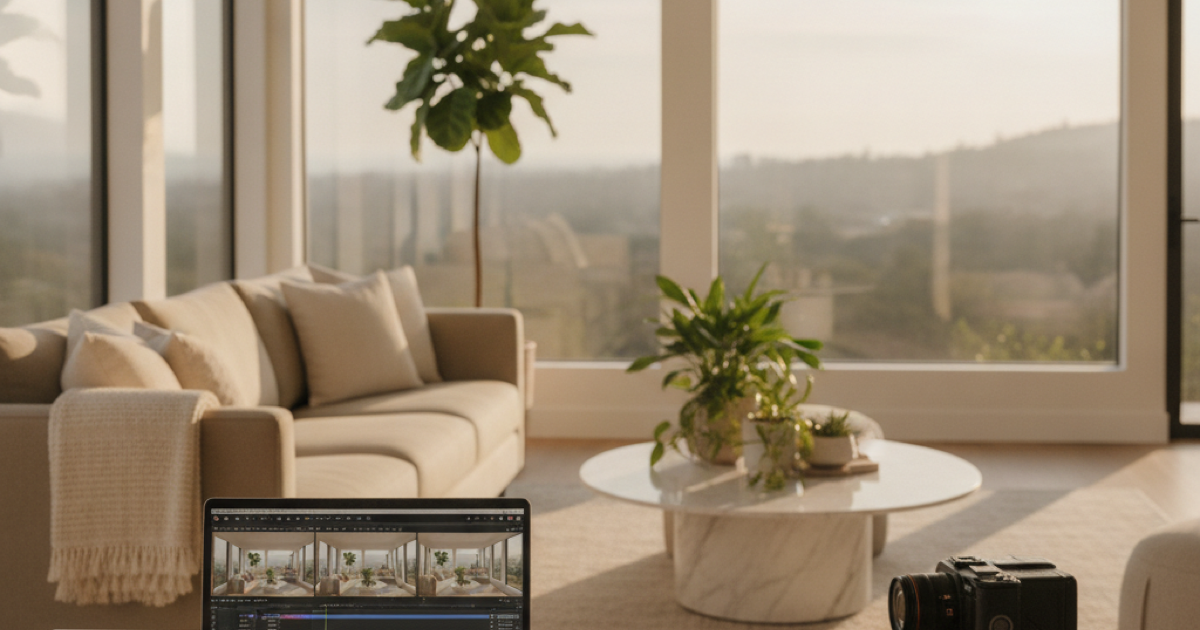
A still render answers one question: what will this room look like. A ten second clip answers the next three at once: how big it feels, how the light falls across the floor, and how one space opens into the next. Buyers scrolling a listing and clients reviewing a scheme both respond to movement, and in 2026 the image-to-video models are good enough that a designer can produce that movement from the stills they already have, without a camera crew or a 3D animation pass.
This guide covers the workflow from a finished still to a usable clip, the settings that decide whether the result looks like architecture or like a dream sequence, and what a clip actually costs at each resolution.
Start with strong stills
Image-to-video models extend what is in the frame. They invent the parts of the room the camera reveals as it moves, so every weakness in the source image grows with each second of footage. A crooked vertical becomes a wall that bends; an ambiguous corner becomes a doorway that was never on the plan.
The best source material is a clean, high-resolution still with straight verticals, consistent light direction, and furniture that reads clearly against the floor. A virtually staged photo of the real room is ideal for listings, because the architecture is true and only the furnishings are generated, and the best virtual staging AI tools now produce stills clean enough to animate. Collov.ai's virtual staging and render tools produce exactly this kind of still: the actual room, furnished in a chosen style, ready to hand to a video model as the first frame.
Prepare more than one angle. A living room shot from the entry, a second from the window wall, and a close detail of the kitchen island give the model real geometry to anchor to instead of guessing what sits behind the sofa.
How image-to-video models handle a room
Modern video models accept a text prompt plus reference inputs: images, sometimes short video clips, sometimes audio. The first image usually acts as the opening frame, and the prompt describes the camera move. For interiors, the camera instruction does most of the work. Write it the way a cinematographer would brief a dolly operator:
- Slow push-in from the doorway toward the window, eye height, no rotation. This is the safest move and suits almost every listing.
- Lateral slide along a sofa or kitchen run. It shows depth without asking the model to invent much new space.
- Slow pan across a room to reveal the second half. Supply a second reference image of that half, or the model will design it for you.
- Light change on a locked camera: morning to late afternoon sun across the floor. Clients find this persuasive for orientation questions.
Fast orbits, drone-style fly-throughs and anything that turns more than about ninety degrees invite the model to rebuild the room, and rebuilt rooms rarely match the plan. Keep the move short and the speed low.
Where the models stand in late 2026
ByteDance Seed released Seedance 2.5 on July 31, 2026, and it is a useful benchmark for what interior work now needs. A single generation runs up to 30 seconds with synchronized audio, which is long enough for a complete room reveal in one take. It accepts up to 50 reference assets (30 images, 10 videos and 10 audio clips), against 15 for Seedance 2.0. For a designer that difference is practical: a whole home's staged stills, a material close-up and a music bed can all go into one request, and the model has far less to invent.
According to the BytePlus model documentation, Seedance 2.5 works in two passes: a 480p draft mode for checking motion and composition, then a 1080p final. The final output is 1080p, 10-bit, in MOV format, which holds up well in a colour grade. Seedance 2.0 can still output 4K, so a project that genuinely needs 4K delivery picks the older model and gives up the longer shots and larger reference set.
You can reach these models directly through the vendor API or through creative platforms that package them. OiiOii, for example, offers the Seedance 2.5 video generation model to its members with 4 to 30 second shots at 1080p, up to 50 image, audio and video references, audio on by default with the option to switch it off, and area editing that re-renders a selected region of the frame. Area editing matters for interiors: if the clip is right except for a lamp that drifts, you fix the lamp instead of regenerating the whole shot. OiiOii's guide to the ByteDance Seedance 2.5 video generation model walks through that workflow step by step, from references and shot generation to local edits of a single region.
What to check before you generate
Shot length
Listing platforms and social feeds favour clips of 10 to 20 seconds. Longer single takes are possible now, but every extra second is more footage the model has to keep consistent. A good pattern is one 5 to 8 second shot per room, cut together, with a single longer take reserved for the hero space.
Reference inputs
Give the model every angle you have of the room in the shot, plus close-ups of anything that must stay exact: a stone slab, a statement light fitting, a rug pattern. Label them in the prompt (“image 2 is the view toward the kitchen”) so the model knows which reference governs which part of the move.
Resolution
Draft at the lowest resolution the model offers and only render the final at full resolution once the motion is approved. 1080p is plenty for listing portals, social and a client screen share. Large-format displays and print stills pulled from video are the cases where 4K earns its place.
Audio
Generated audio is synchronized to the picture, which is convenient for ambient sound such as birdsong through an open window or a quiet room tone. For a listing that will be cut together with a licensed music track, switch generated audio off so you are not fighting it in the edit.
Cost
BytePlus prices Seedance by output tokens: Seedance 2.5 costs $10.70 per million tokens at 480p and 720p and $11.70 at 1080p, against $7.00 and $7.70 for Seedance 2.0. Per clip, that works out as follows.
| Resolution | Seedance 2.5 | Seedance 2.0 |
|---|---|---|
| 480p | $0.514 | $0.35 |
| 720p | $1.156 | $0.76 |
| 1080p | $2.843 | $1.87 |
The gap between draft and final is the number to plan around. A 1080p clip on Seedance 2.5 costs more than five times its 480p draft, so iterating at 480p and rendering once at 1080p keeps a full-home walkthrough of six or seven rooms to a modest budget. Failed generations are not charged, so a request the model rejects costs nothing.
A workflow that holds up
- Finalise the stills. Stage or render each room, fix verticals, and export at full resolution.
- Write a shot list. One line per room: start frame, camera move, duration, and whether it needs audio.
- Draft at 480p. Check that walls stay straight, furniture stays put, and windows keep the same view.
- Fix regions, not shots. Use area editing or a tighter prompt for the one element that drifts.
- Render the final. 1080p for most uses, then cut the room clips together and add titles in your editor.
Disclosure for listings
Virtually staged imagery in property listings usually needs to be labelled as such, and an animated version of a staged photo is still staged imagery. Keep the room's architecture true to the property, label the clip as virtually staged, and keep an unstaged photo of each room in the listing. Check your local MLS or portal rules for the exact wording they require.
Where the effort goes
The video model does the animation; the quality of the clip is still decided upstream. A well staged still with honest geometry, a short camera move written like a shot brief, and a cheap draft before the expensive final will produce a walkthrough a client can judge and a buyer will watch to the end. Collov.ai covers the first part of that chain, turning an empty or dated room into a furnished still worth animating.