Choose the right edit
Start with a clear original image and decide what you want to change. Select a tool below to view an example, compare the result, and follow the steps.
Furnish and edit a room
Add an item, remove furniture, clear a room, or preview a different finish.
Add Furniture
Add furniture or a specific furnishing to a room photo. Furnish an empty space or try an extra item in an existing room.
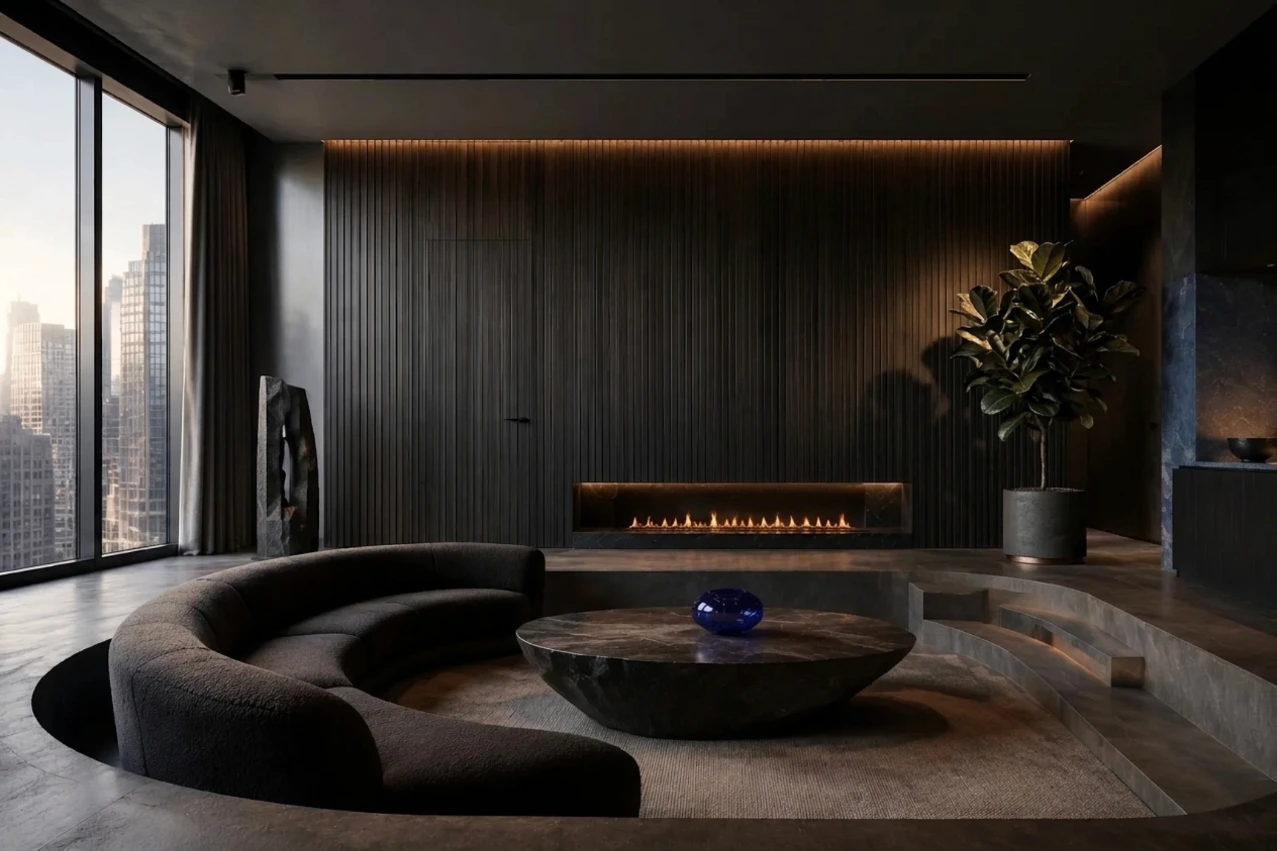
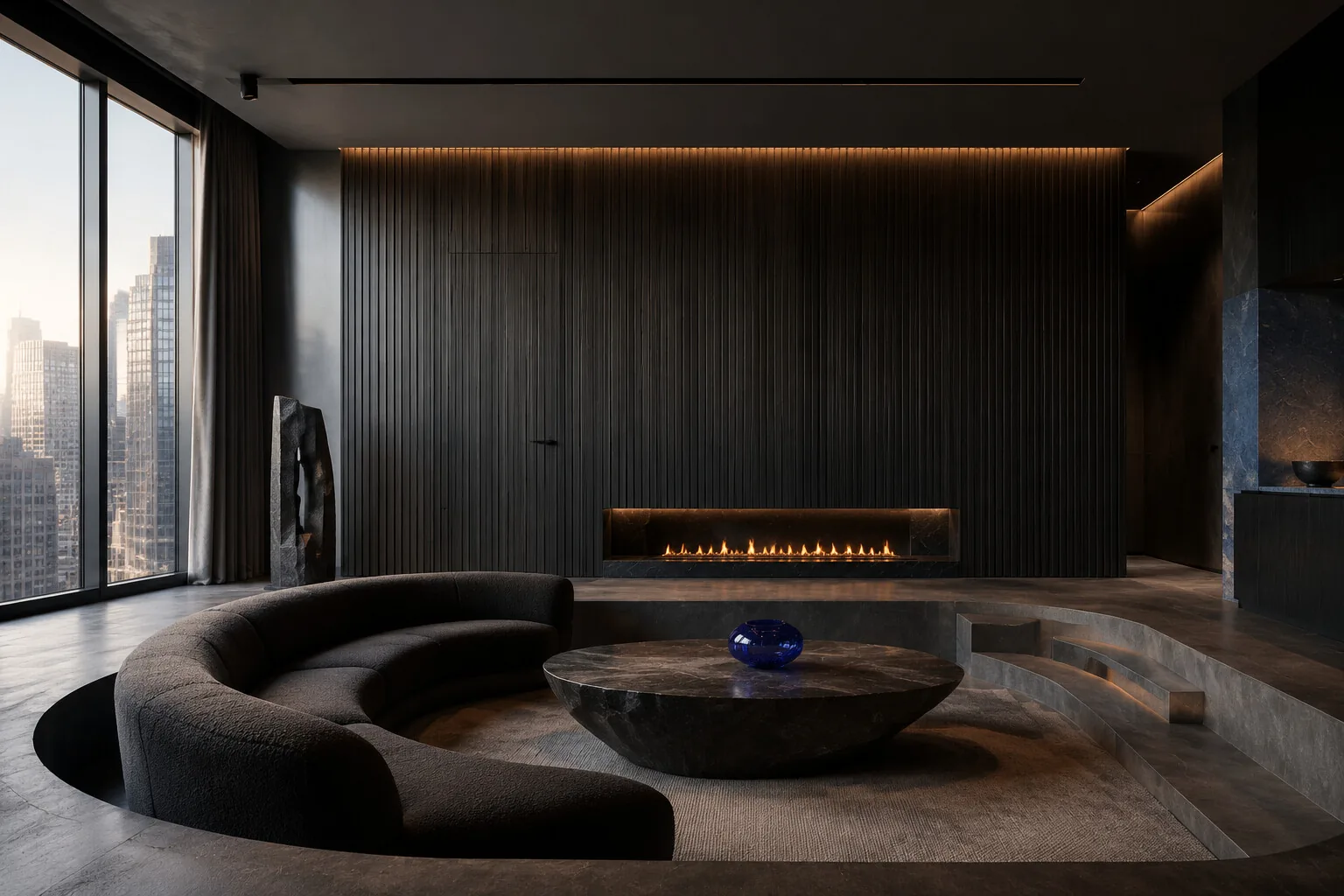
Example
a plant in the corner of the room
A potted plant appears in the right-hand corner while the existing seating and table remain.
1. Start with the right photo
An empty room or a furnished room where the intended addition has a clear placement. Keep walls, windows, and floor space visible.
2. Choose a style and describe the addition
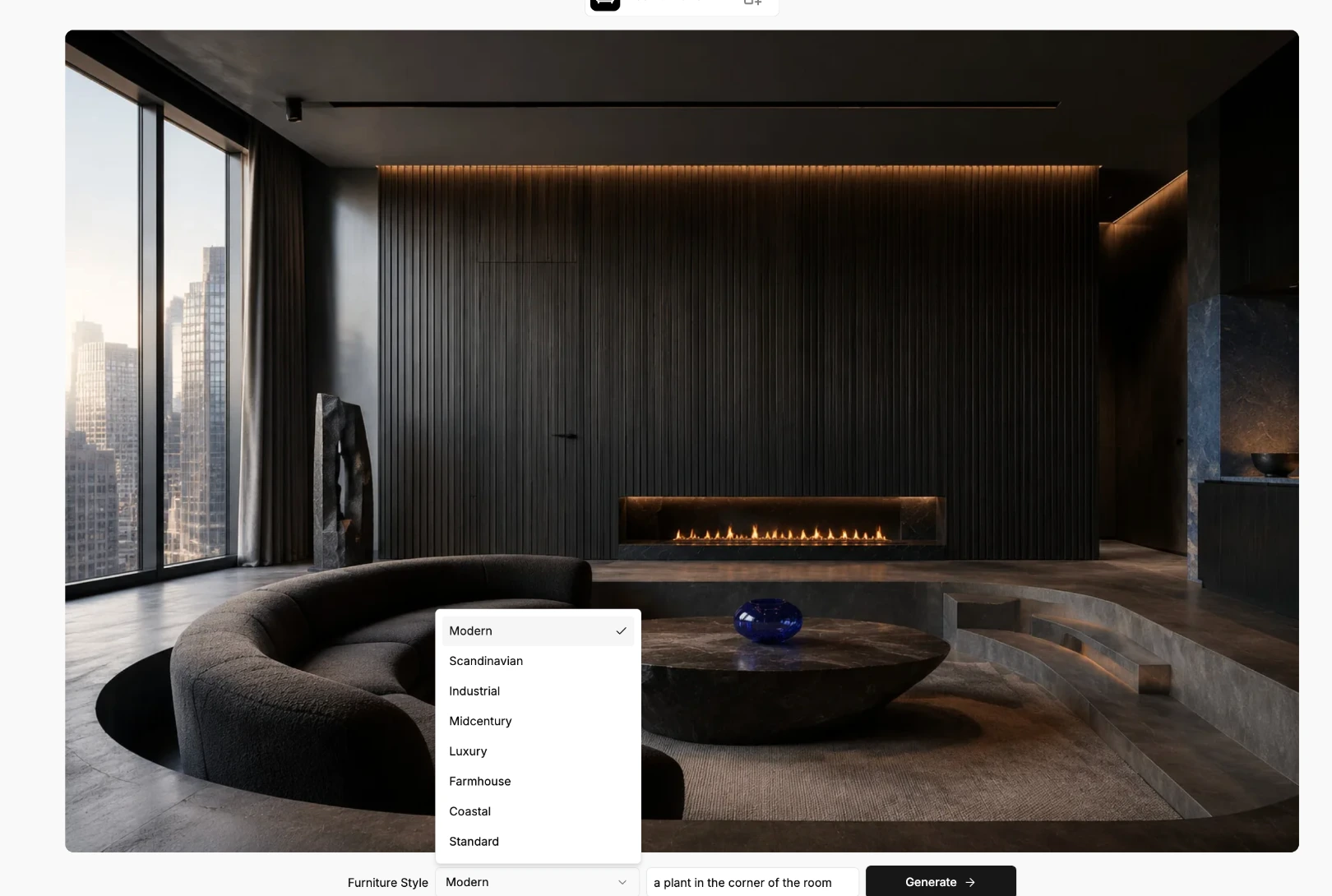
Choose Furniture Style, then enter the addition you want. This example uses Modern and “a plant in the corner of the room.”
3. Generate and inspect the placement
Choose Generate. Compare the plant placement, scale, lighting, and the rest of the room before saving.
See the tool settings example
Furniture Eraser
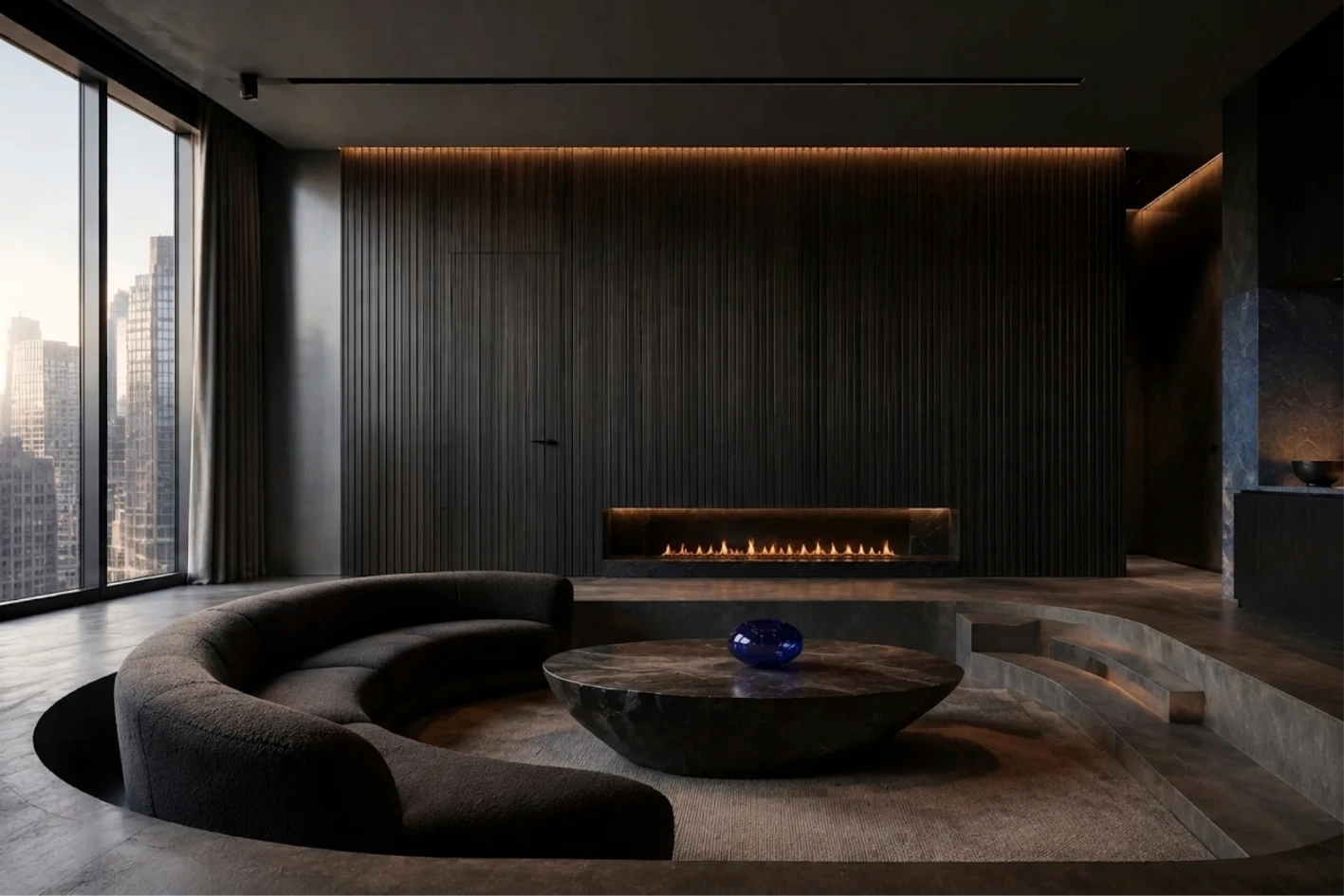
Remove a selected piece of furniture or object from a room photo. In this example, the sculpture is removed while the sofa and table remain.
Example
Brush over the sculpture beside the window; choose Remove.
The sculpture beside the window is removed. The sofa and coffee table remain in this example.
1. Start with the right photo
A furnished room photo with clear furniture edges and a visible floor. Keep the original for comparison.
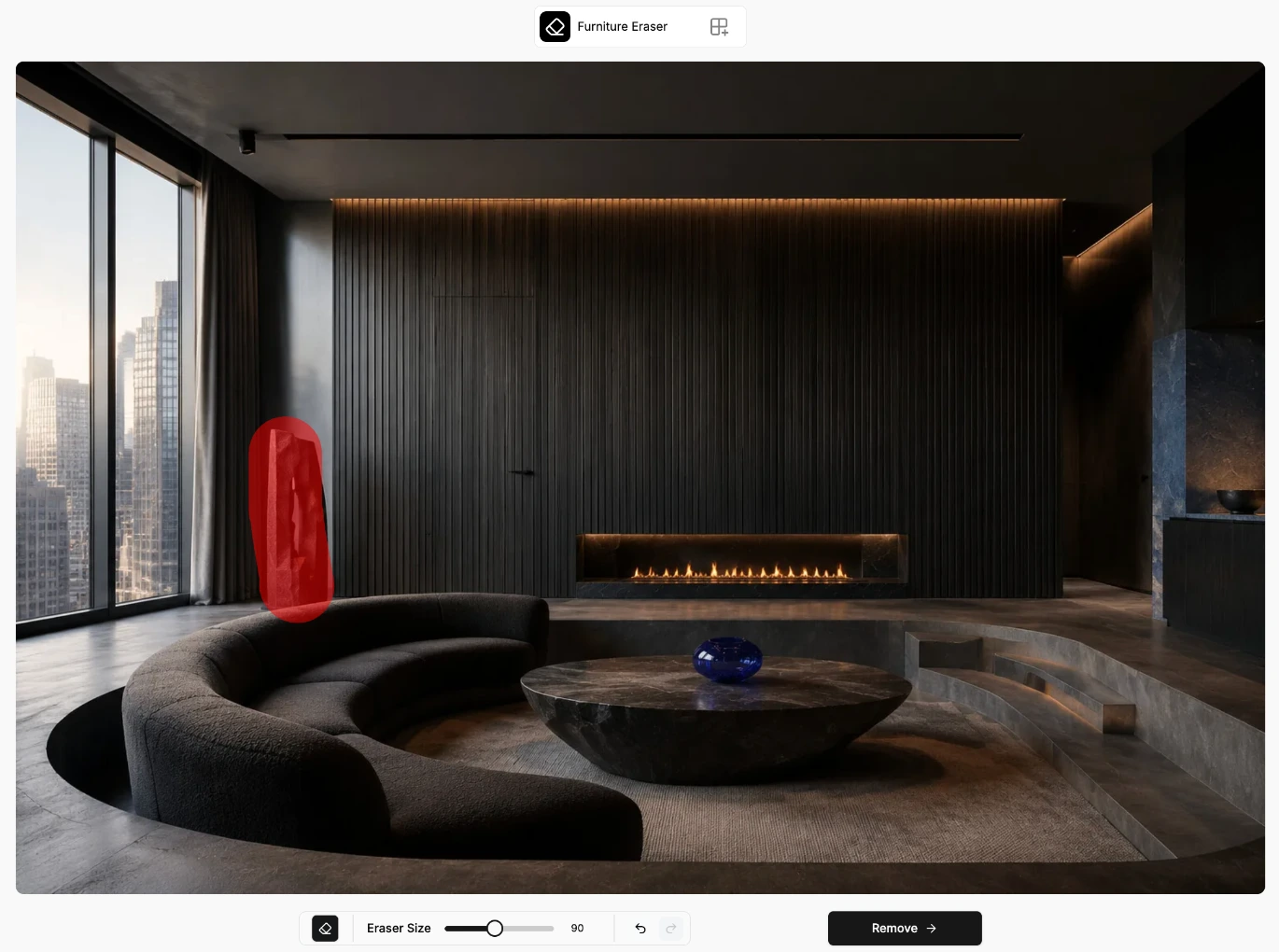
2. Paint over the object
Adjust Eraser Size and paint over the item you want removed. The example marks the sculpture beside the window in red.
3. Remove and compare
Choose Remove. Check the reconstructed wall and floor, and confirm that the sofa, table, and surrounding details remain suitable.
See the tool settings example
Room Decluttering
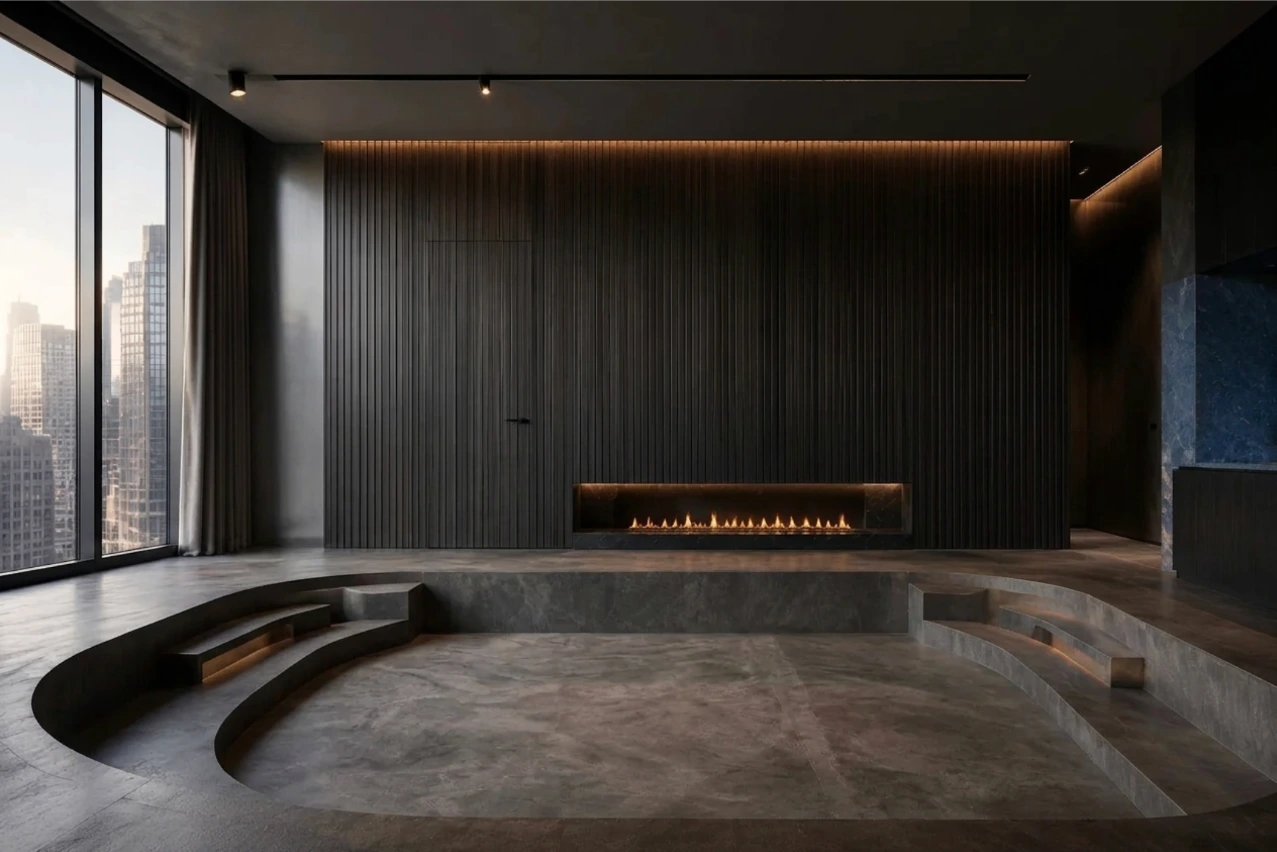
Remove selected room items or clear the detected furnishings from an interior photo. This example uses Remove all items to clear the seating and coffee table.
Example
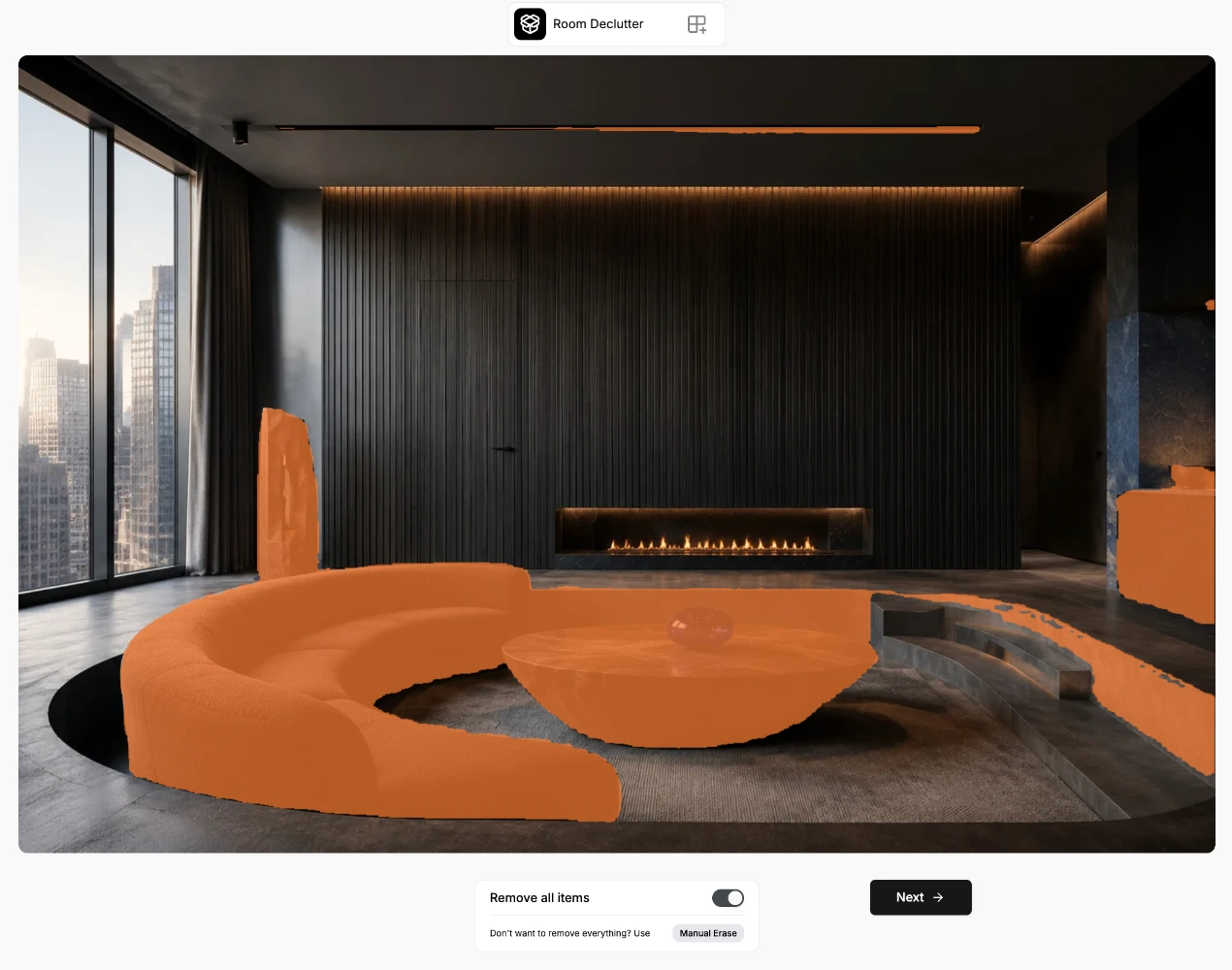
Use Remove all items, review the highlighted selection, then choose Next.
The seating and coffee table are removed, exposing the sunken floor. Inspect the steps and other reconstructed areas.
1. Start with the right photo
An interior photo with a clear view of the items you want to address.
2. Review the detected items
Inspect the orange highlights. For this example, use Remove all items. Check the selection before continuing.
3. Process the cleanup and inspect it
Choose Next, then compare the cleared room with the source. Review the steps and reconstructed floor carefully.
See the tool settings example
Material Overlay
Preview a different finish on a visible surface, such as a floor or countertop, without physically changing the room.
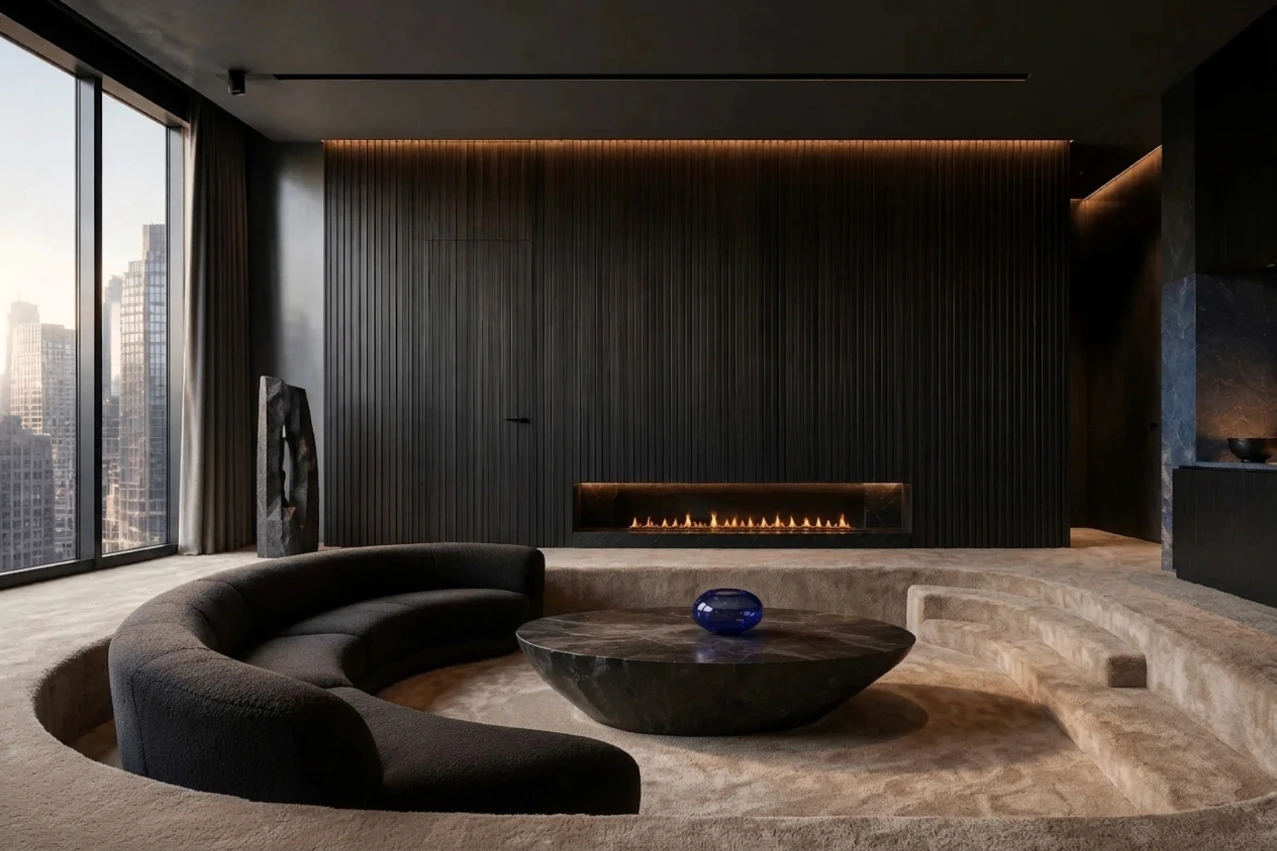
Example
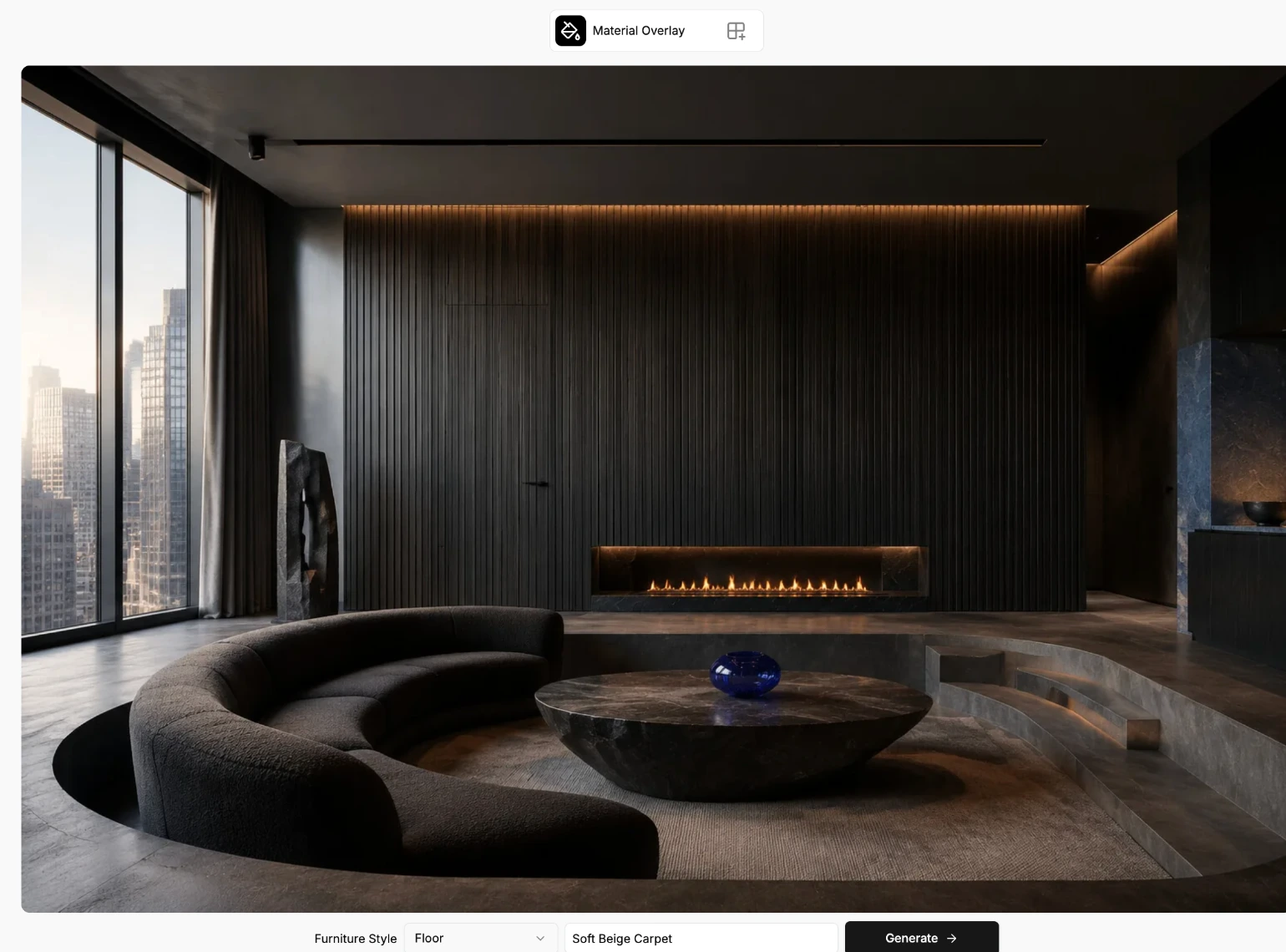
Floor · Soft Beige Carpet
A light beige carpet treatment appears around the seating area. Review the boundaries and changes to surrounding surfaces.
1. Start with the right photo
A room photo where the surface you want to change is clearly visible.
2. Choose the surface and describe the finish
Choose the target surface and enter the finish. The example selects Floor and enters “Soft Beige Carpet.”
3. Generate and inspect the material
Choose Generate, then check the material boundary and nearby surfaces. Compare the steps, seating, and original room structure before saving.
See the tool settings example
Improve a photo or describe an edit
Enhance a photo or use a written request to change it.
Enhance Photo Quality
Improve the clarity and color of an existing photo before using it in a listing or presentation.
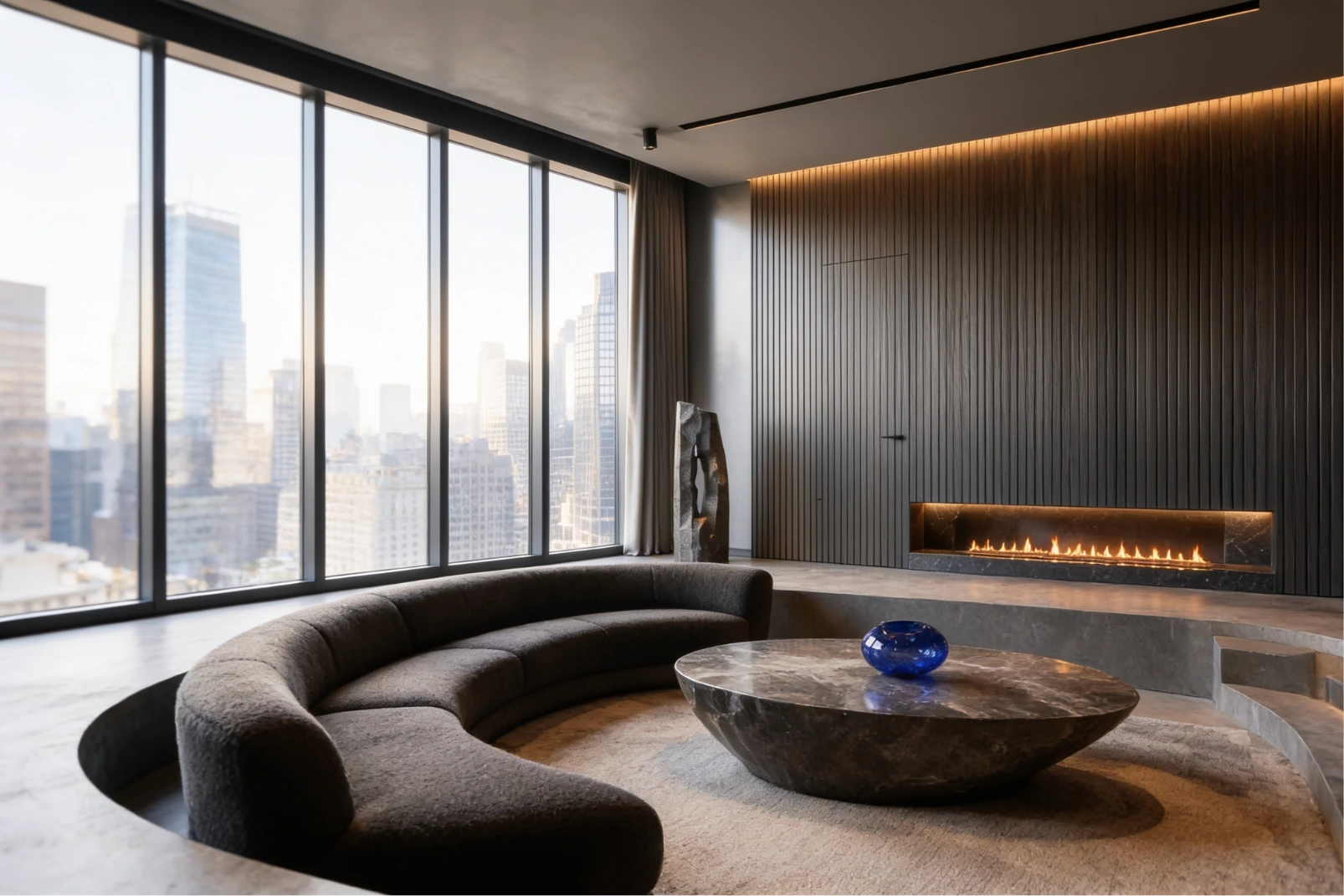
Example
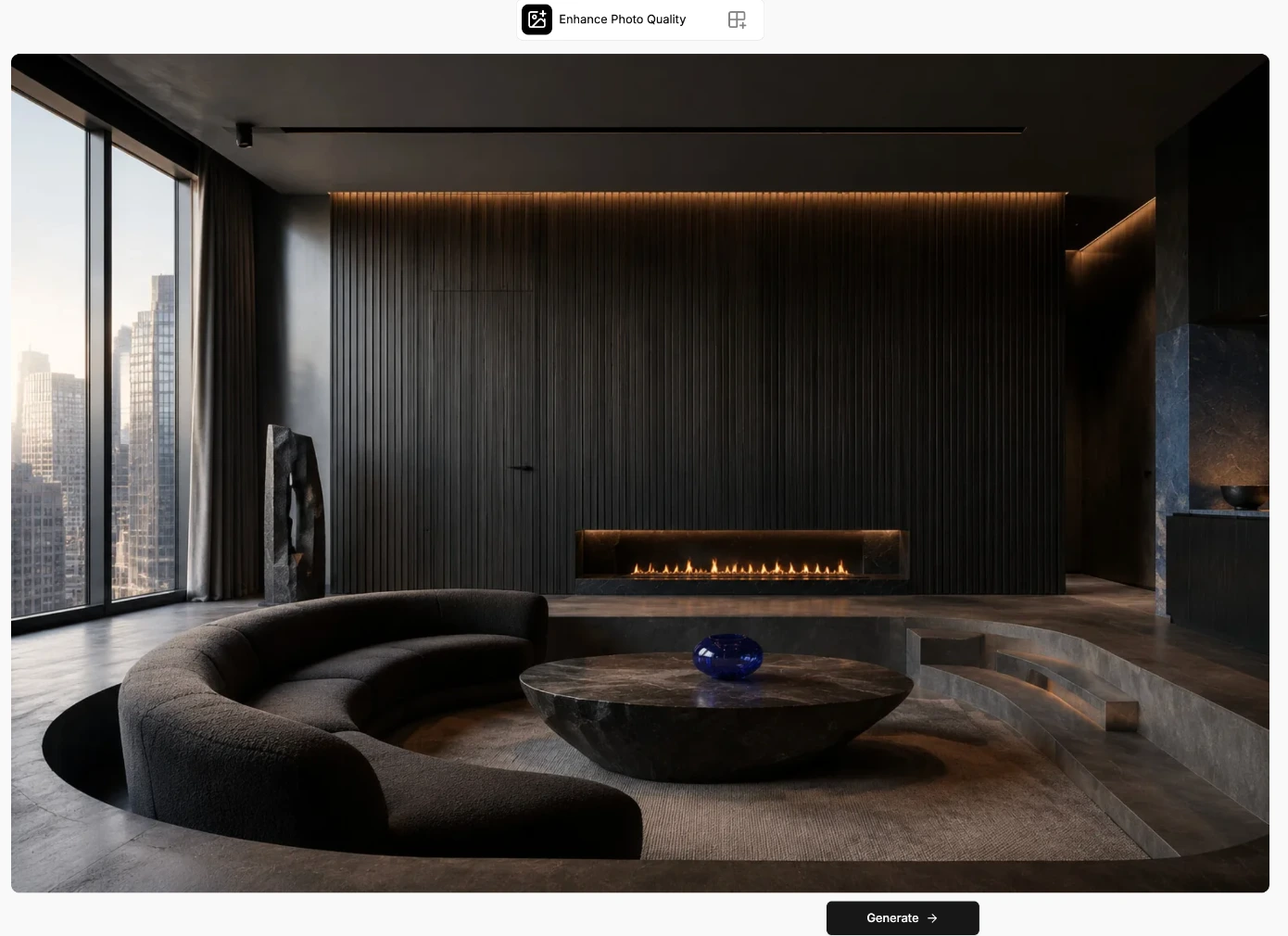
Open Enhance Photo Quality and choose Generate.
The result is brighter, but the window layout and framing also change. Compare structure as well as detail before using it.
1. Start with the right photo
An image with visible quality issues. Keep the highest-quality original you have.
2. Generate the enhancement
Choose Generate beneath the uploaded image.
3. Compare at full size
Inspect clarity, lighting, framing, and fixed features before saving. In this example, the window layout changes along with brightness. Check the structure against the original.
See the tool settings example
AI Chat Edit
Turn a written request into a photo edit. Use it when you can describe the change you want, such as furnishing a room or removing clutter.
Example
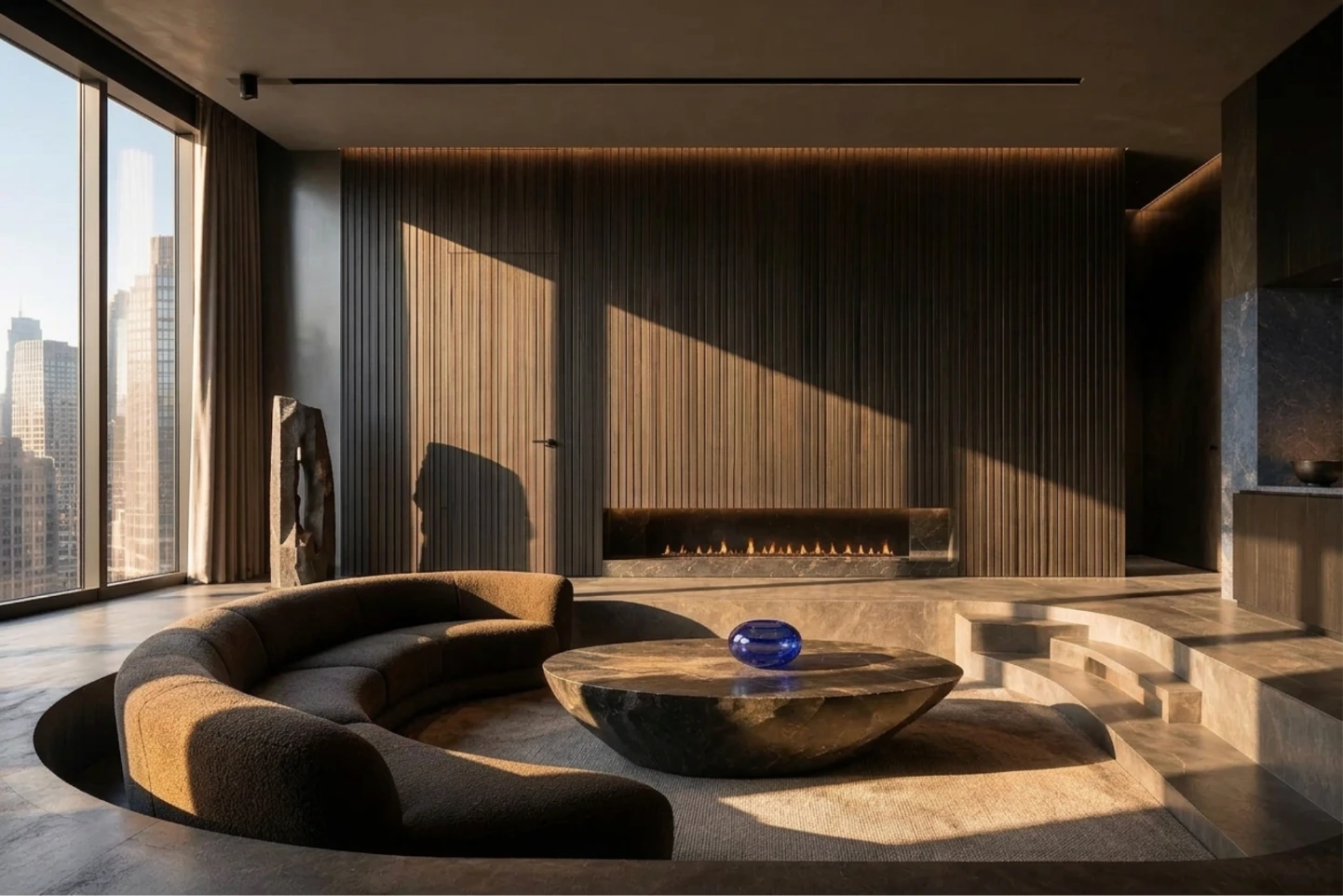
enhance sunlight in living room
Sunlight and stronger shadows appear across the room. Compare the light on the wall and floor.
1. Start with the right photo
A photo with a clear editing target. Start with one change, such as removing a single object.
2. Describe and submit your edit
Enter a specific request and submit it using the arrow. This example uses “enhance sunlight in living room.”
3. Review and refine
Compare the lighting and shadows with the original. Use a follow-up request if the result needs adjustment.
See the tool settings example

Change lighting and weather
Compare twilight, night-to-day, and rainy-to-sunny transformations.
Virtual Twilight
Turn a daytime exterior into a dusk visualization, changing the sky and lighting atmosphere.
Example
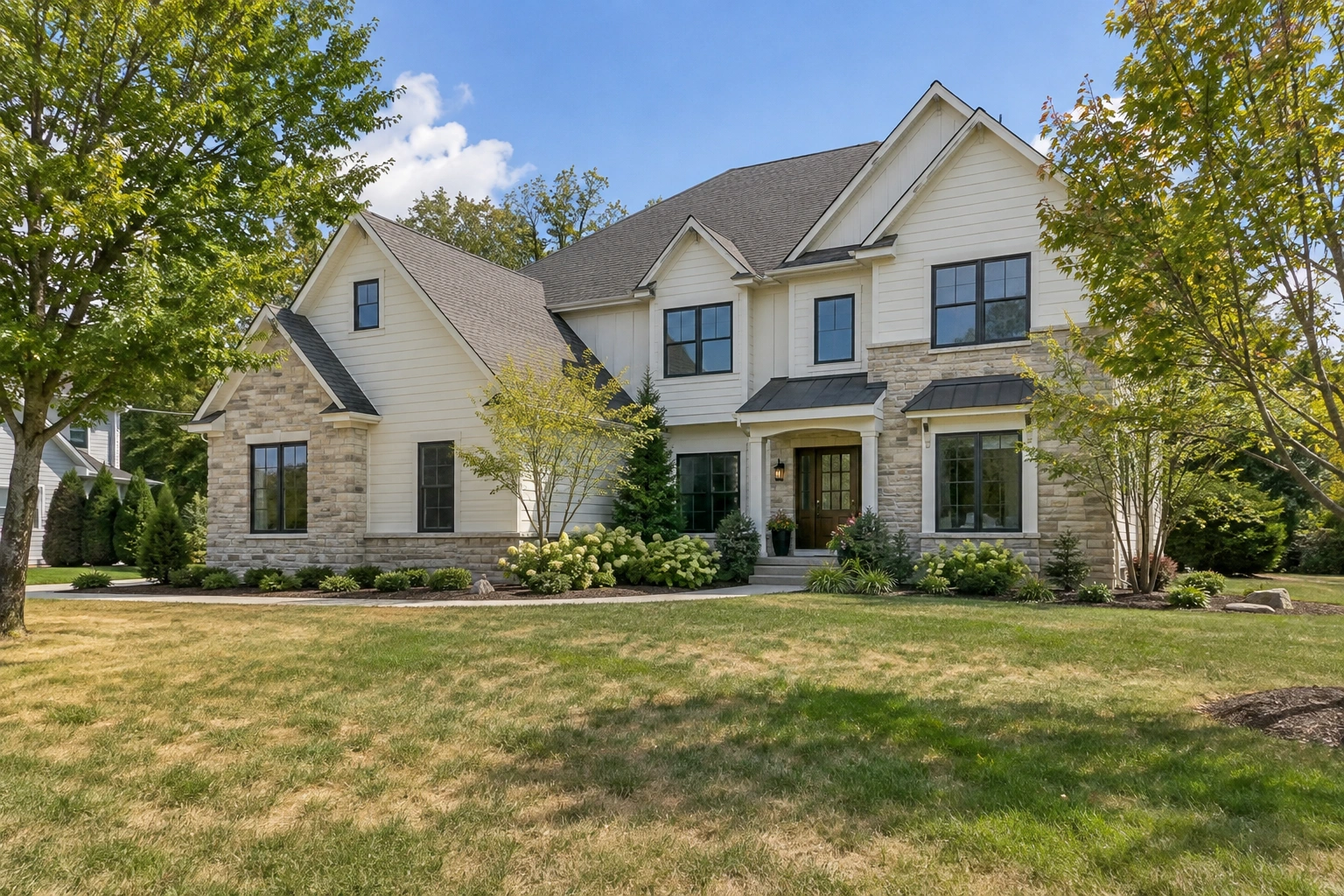
Upload the daytime exterior · Generate
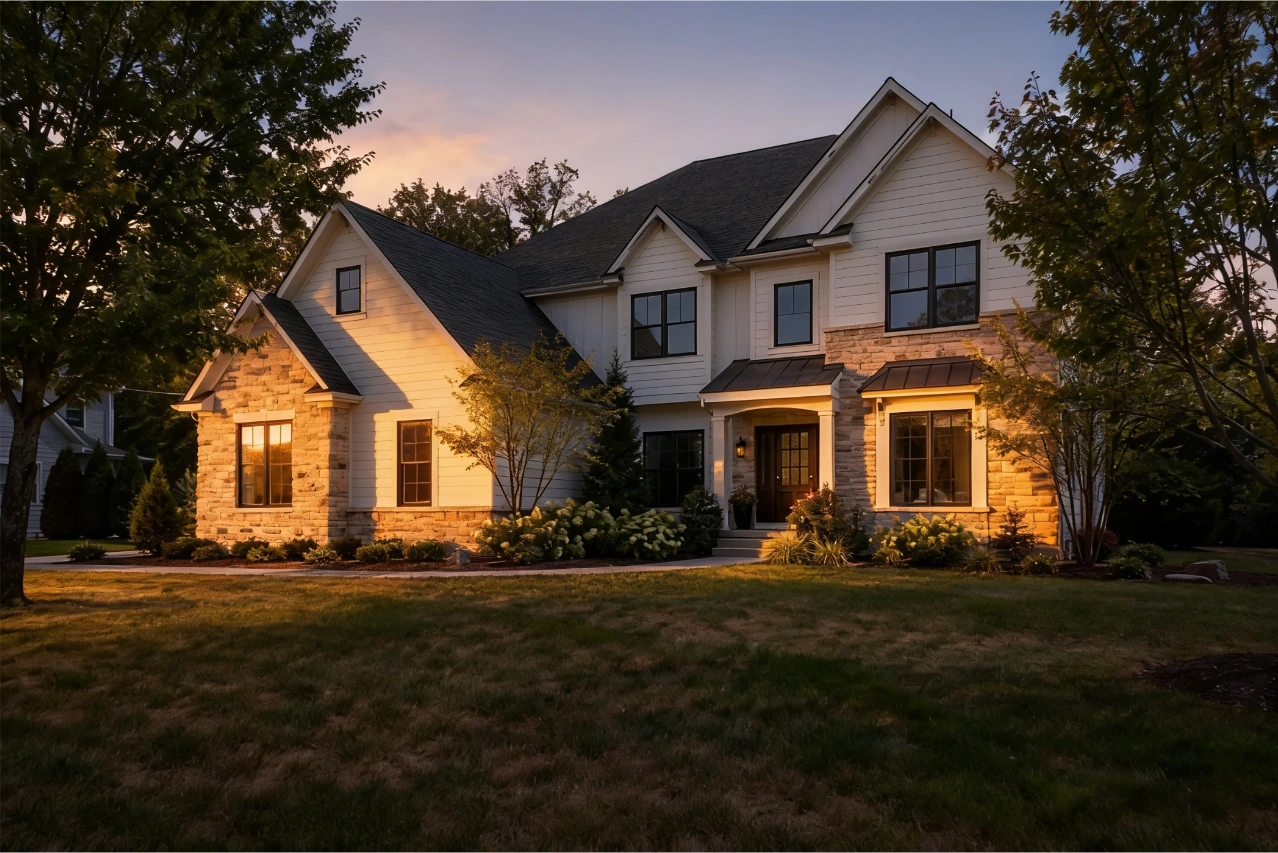
The sky shifts to twilight and the facade receives warm lighting. Compare the roofline, windows, sky, and lawn against the source.
1. Start with the right photo
A daytime exterior with a visible building and sky.
2. Generate the twilight version
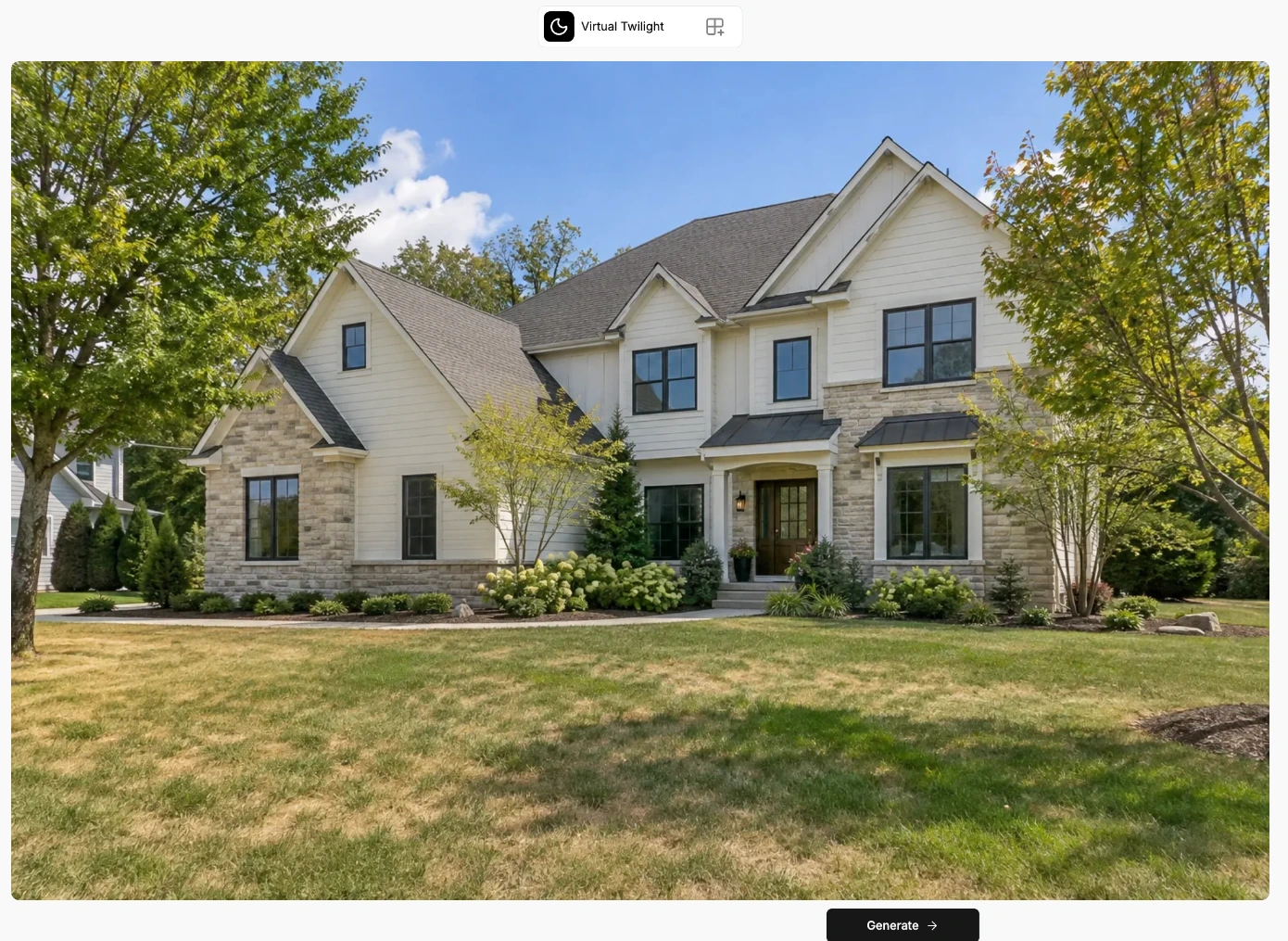
Upload a daytime exterior, then choose Generate.
3. Review the lighting
Drag the comparison divider to inspect the twilight sky, facade lighting, roofline, and windows before saving.
See the tool settings example
Natural Twilight
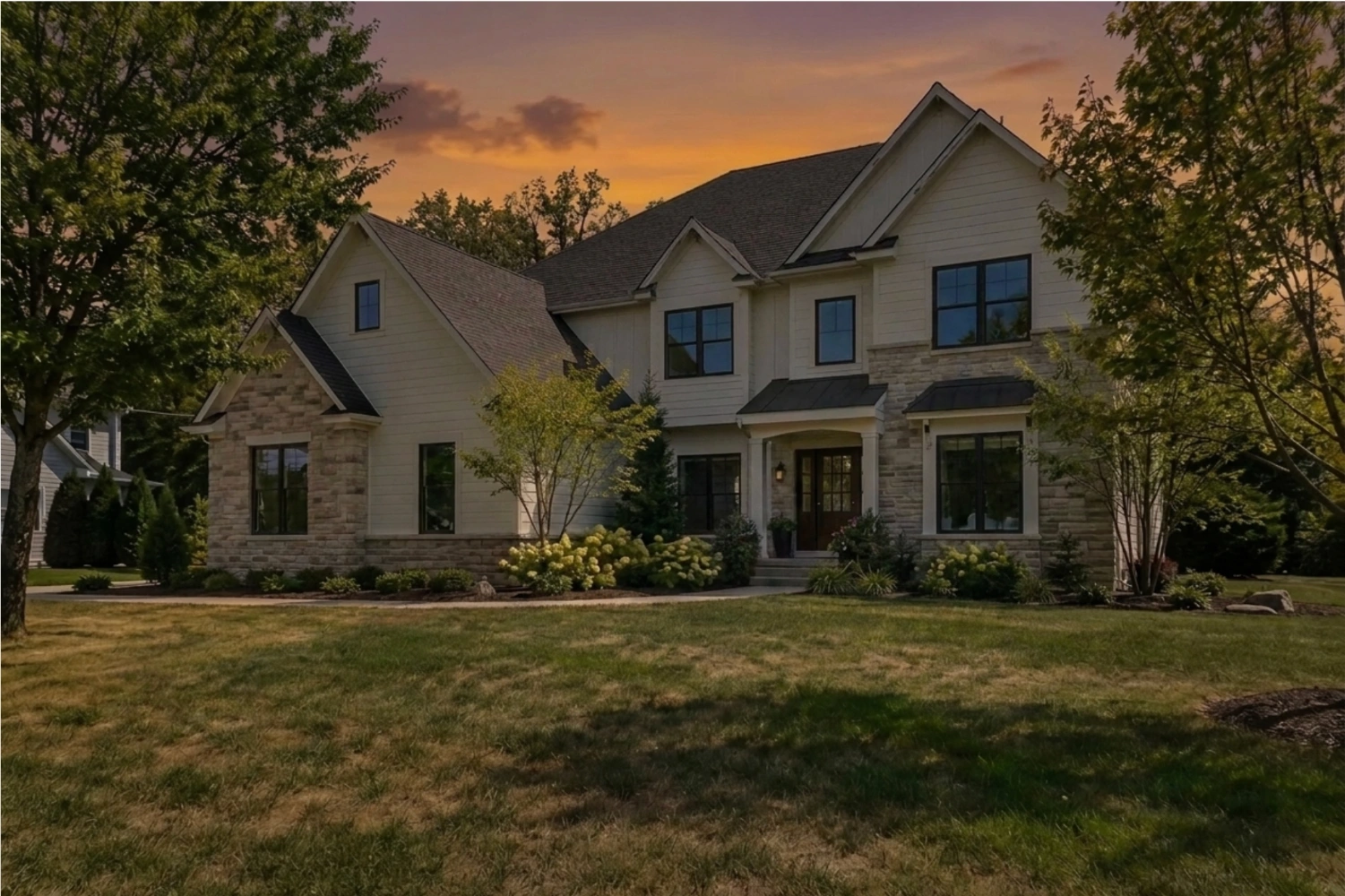
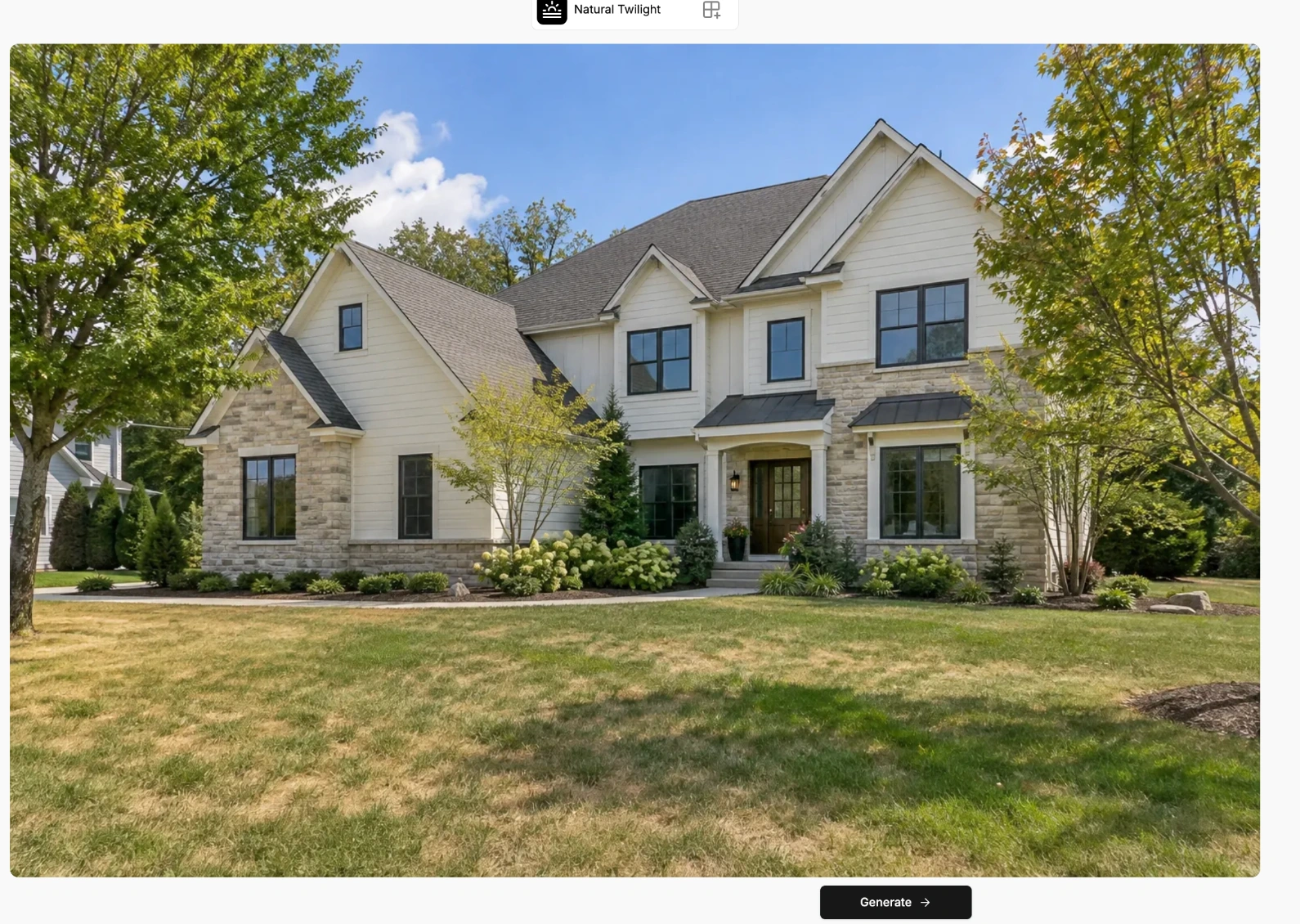
Turn a daytime property exterior into a realistic twilight scene. The tool automatically adjusts lighting, reflections, and ambiance to simulate the “golden hour” effect. To choose the look you prefer, try Virtual Twilight on the same photo and compare.
Example
Upload the daytime exterior · Generate
The sky turns to an orange sunset and the whole scene takes on evening light. Compare the sky edges, shadows, and building details with the daylight source.
1. Start with the right photo
A daytime exterior with a visible building and sky.
2. Generate the twilight treatment
Upload a daytime exterior, then choose Generate.
3. Compare the atmosphere
Review the returned sky and lighting together with the building geometry. Compare the source and result before saving.
See the tool settings example
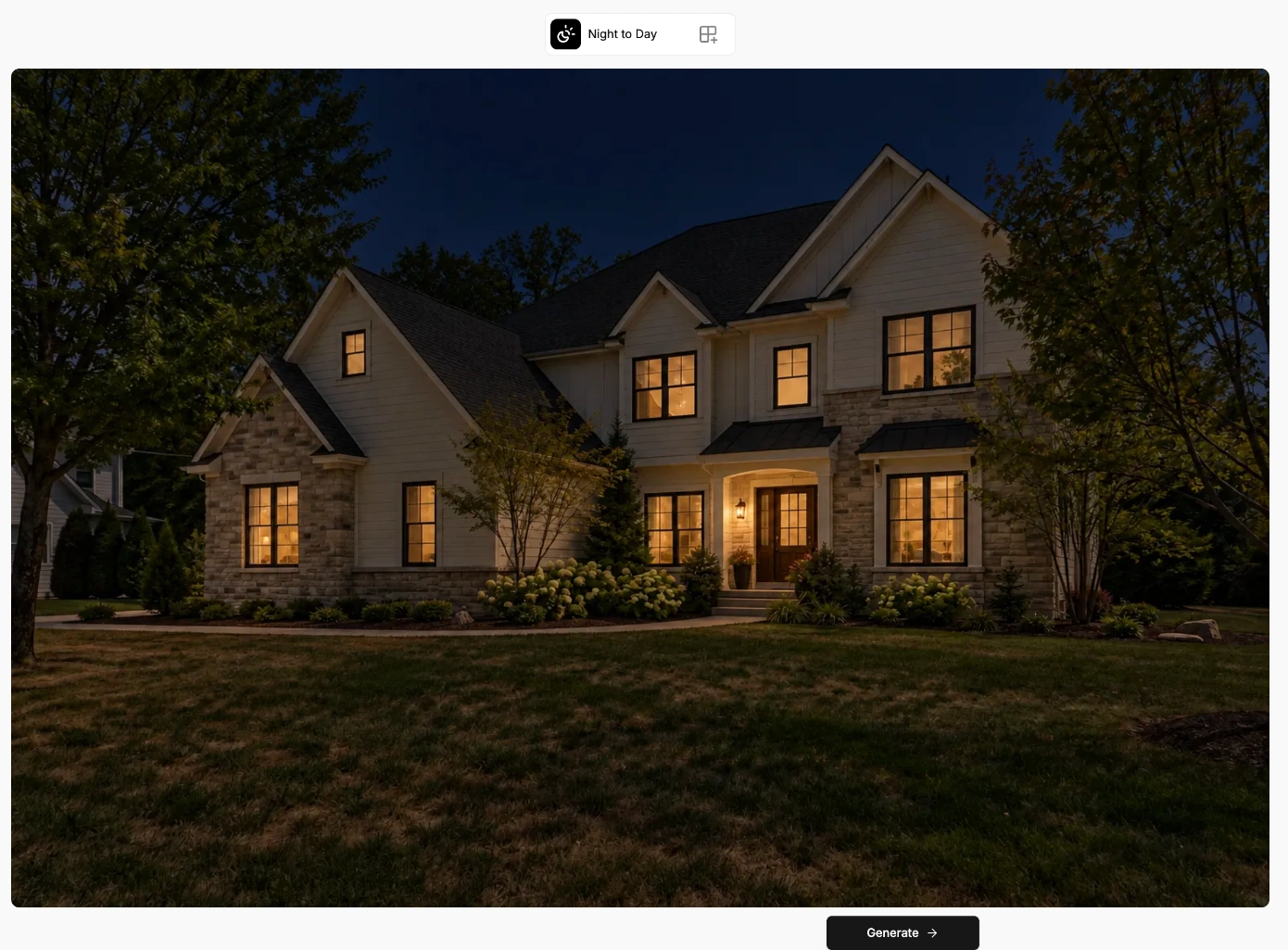
Night to Day
Convert a nighttime property photo into a daytime visualization.
Example
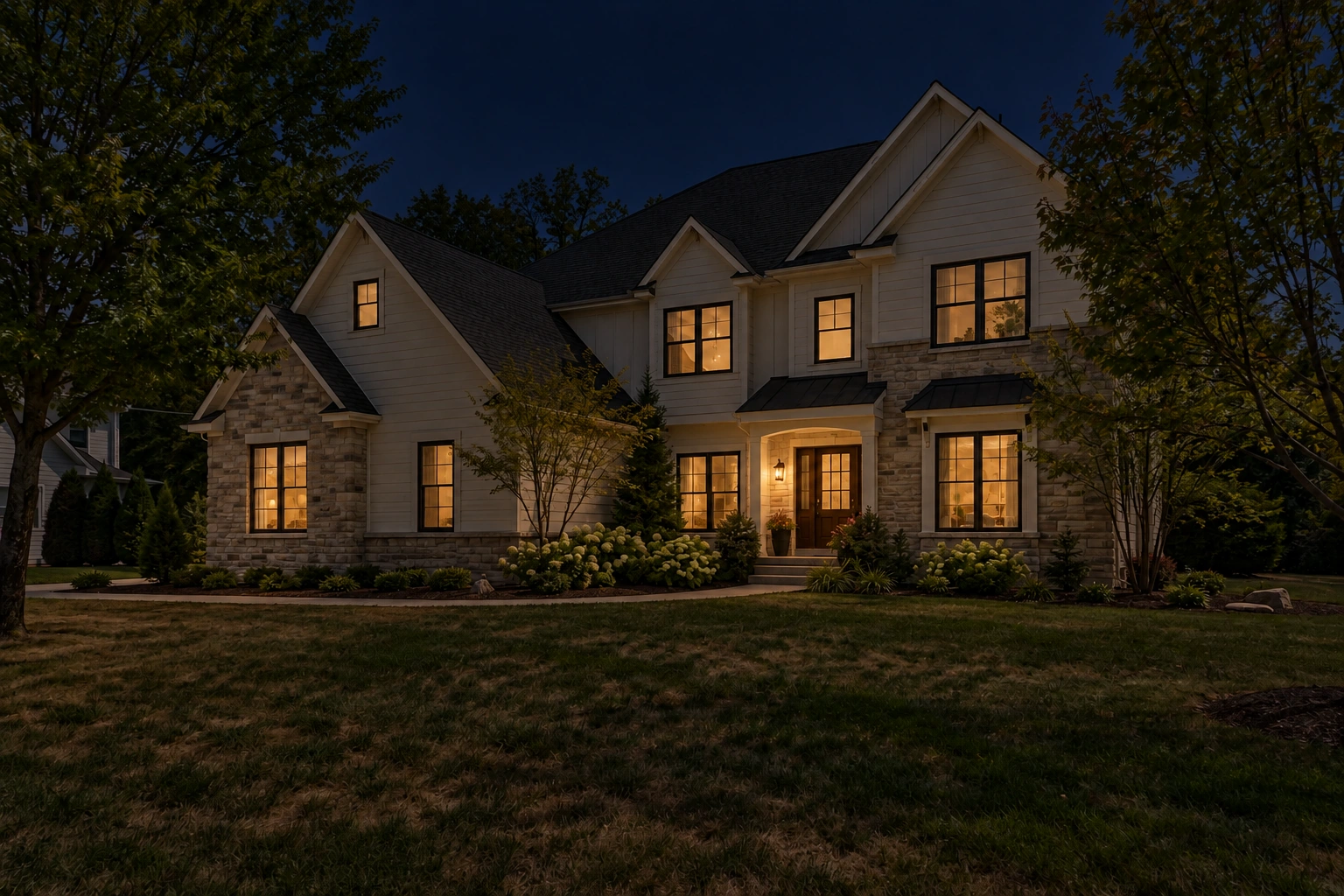
Upload the night photo · Generate
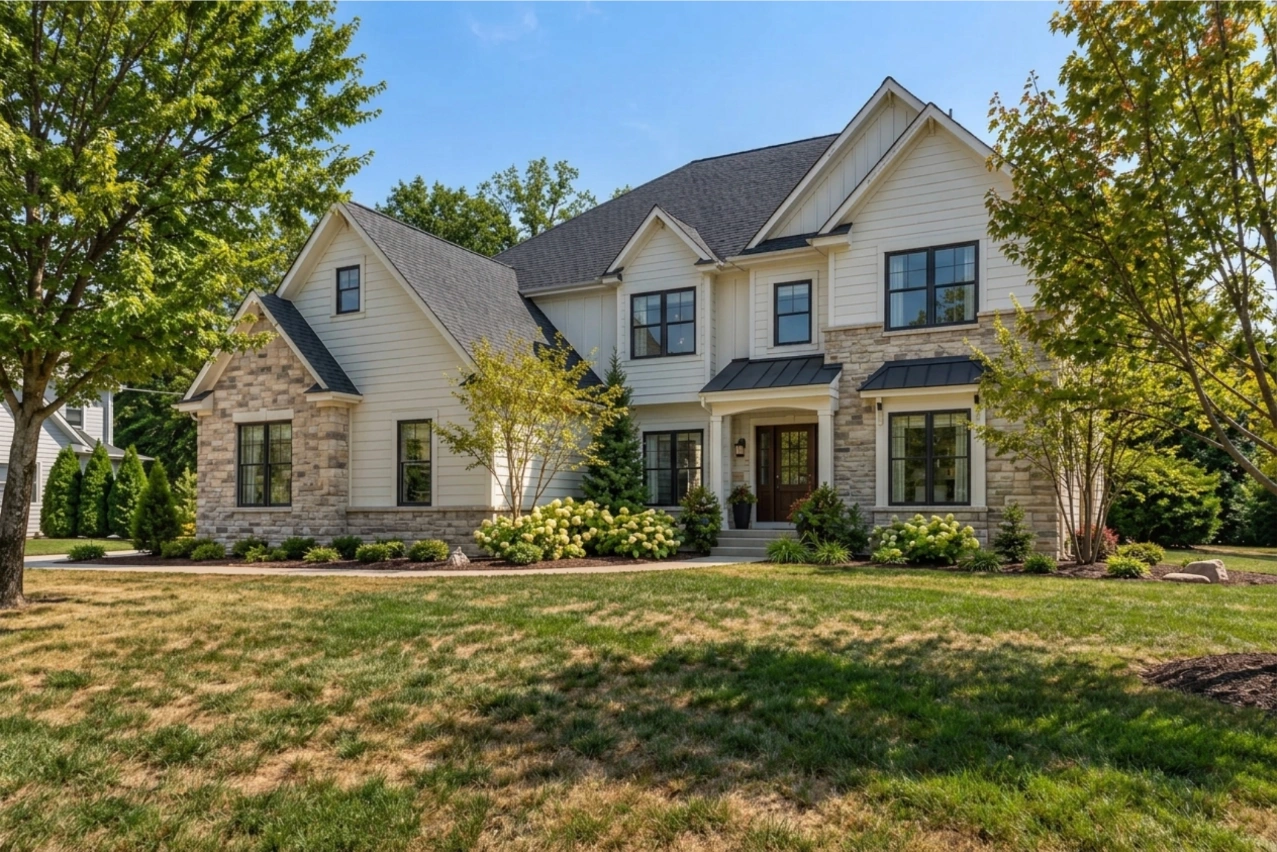
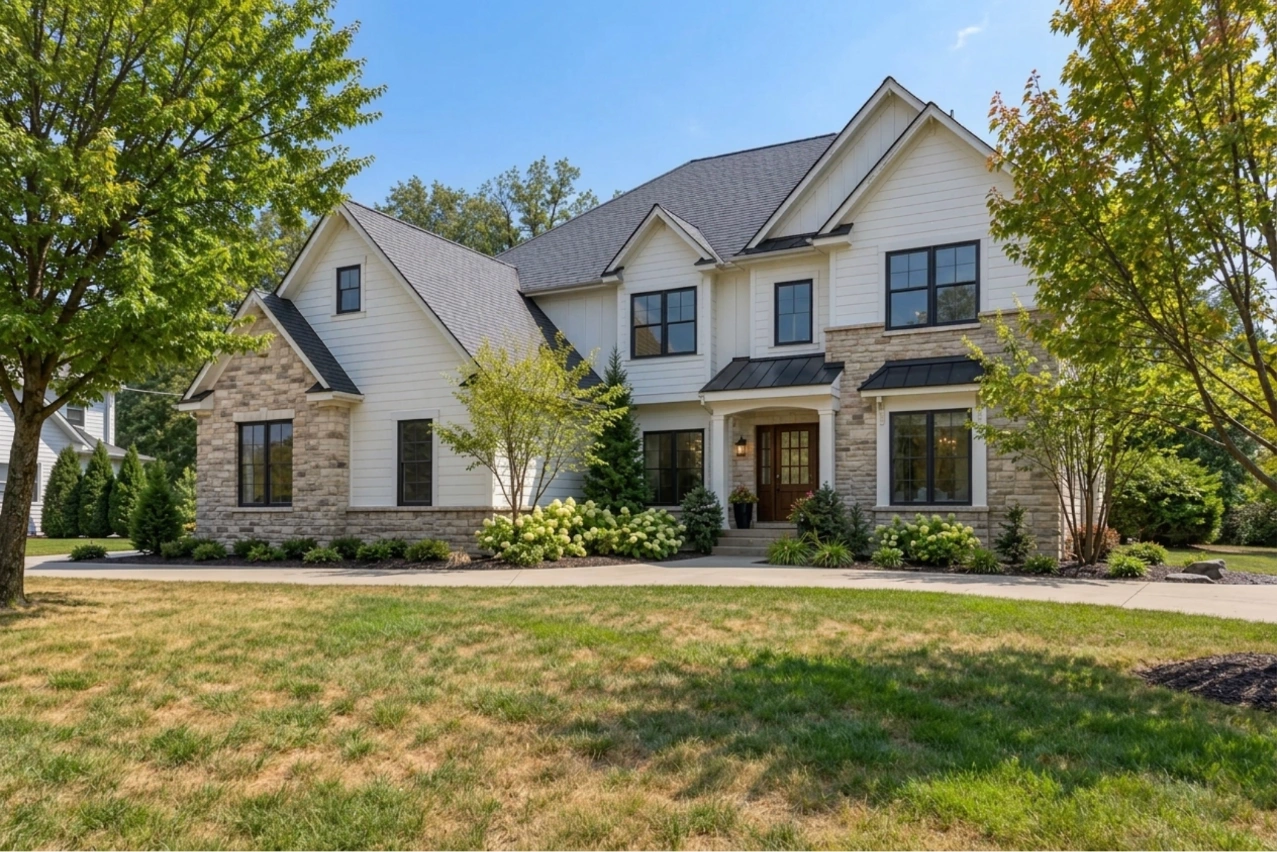
The night scene becomes a daylight exterior. Compare windows, rooflines, and details that were dark in the input.
1. Start with the right photo
A night exterior where the building is still visible.
2. Generate a daylight version
Choose Generate beneath the night image.
3. Inspect newly visible areas
Compare the source and result. Verify architectural details that were difficult to see in the night photo before using the output.
See the tool settings example
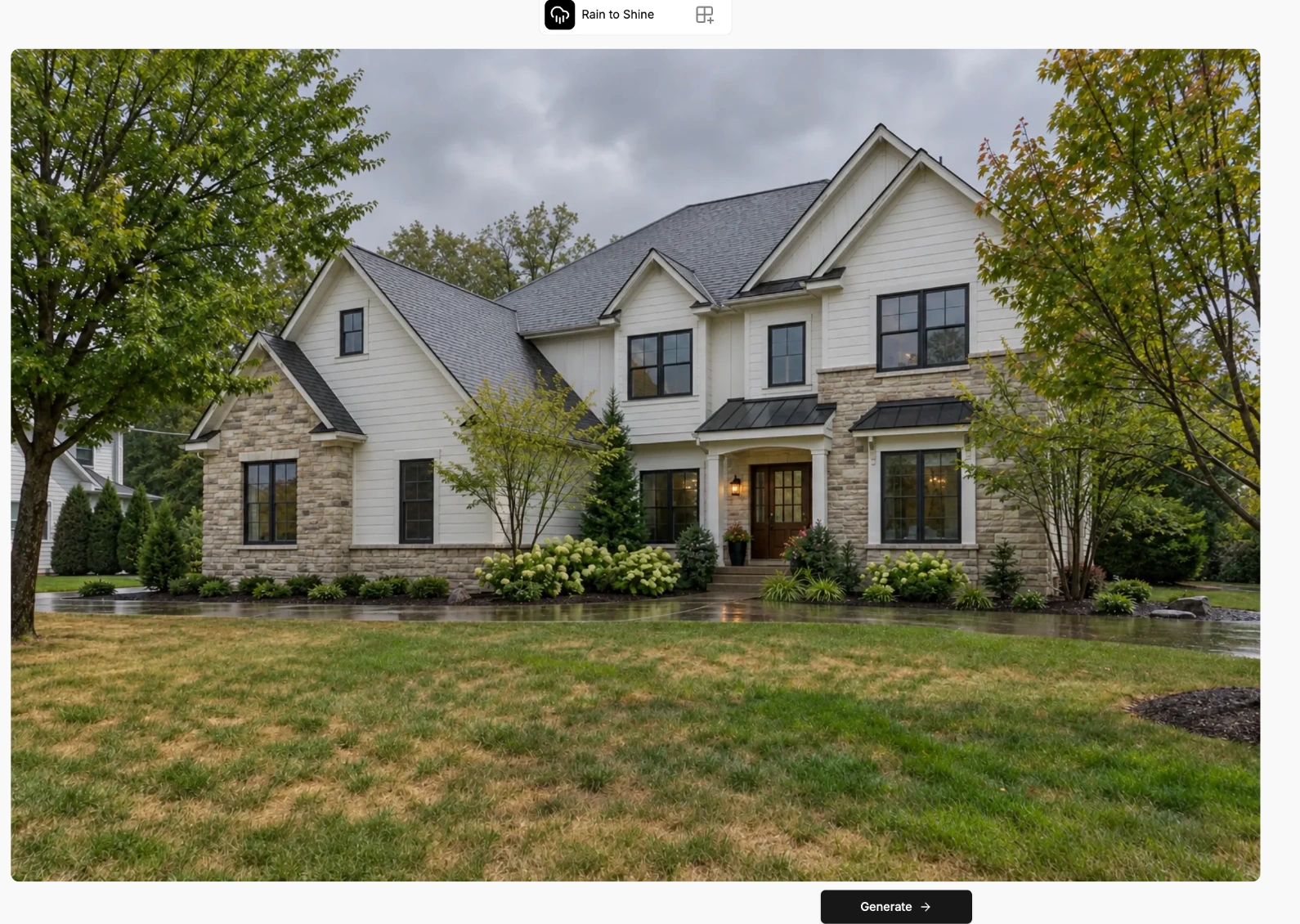
Rain to Shine
Change the weather appearance of an exterior photo toward a sunny scene.
Example
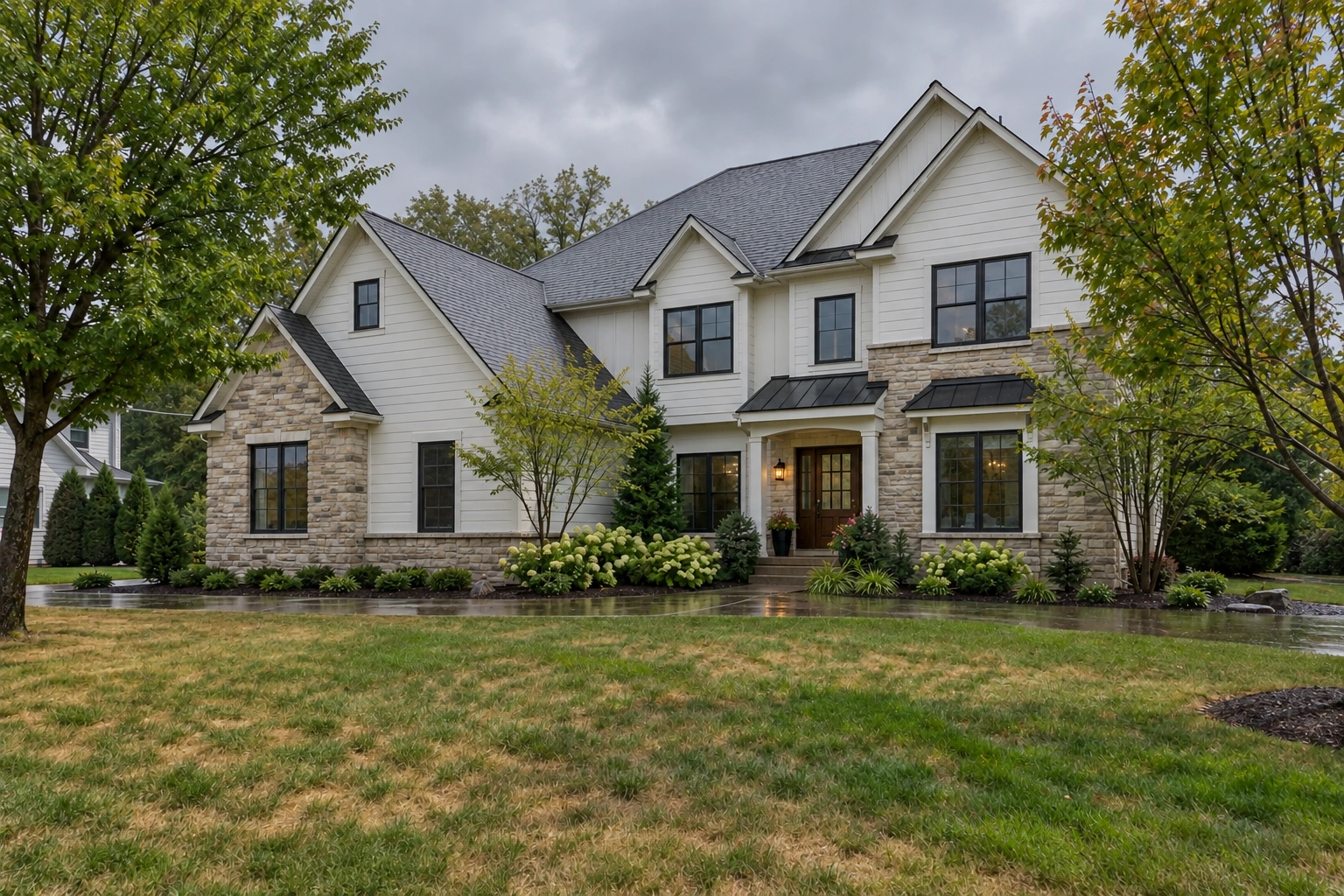
Upload the rainy exterior · Generate
Clouds give way to a blue sky and brighter daylight. Compare the wet path, shadows, and sky edges.
1. Start with the right photo
A cloudy or rainy exterior with a clear view of the property.
2. Generate the sunny version
Choose Generate beneath the rainy input.
3. Check the scene together
Compare sky, shadows, reflections, and the path against the source before saving.
See the tool settings example
Refresh landscaping and seasons
Replace a patchy lawn or visualize a different season.
Lawn Replacement
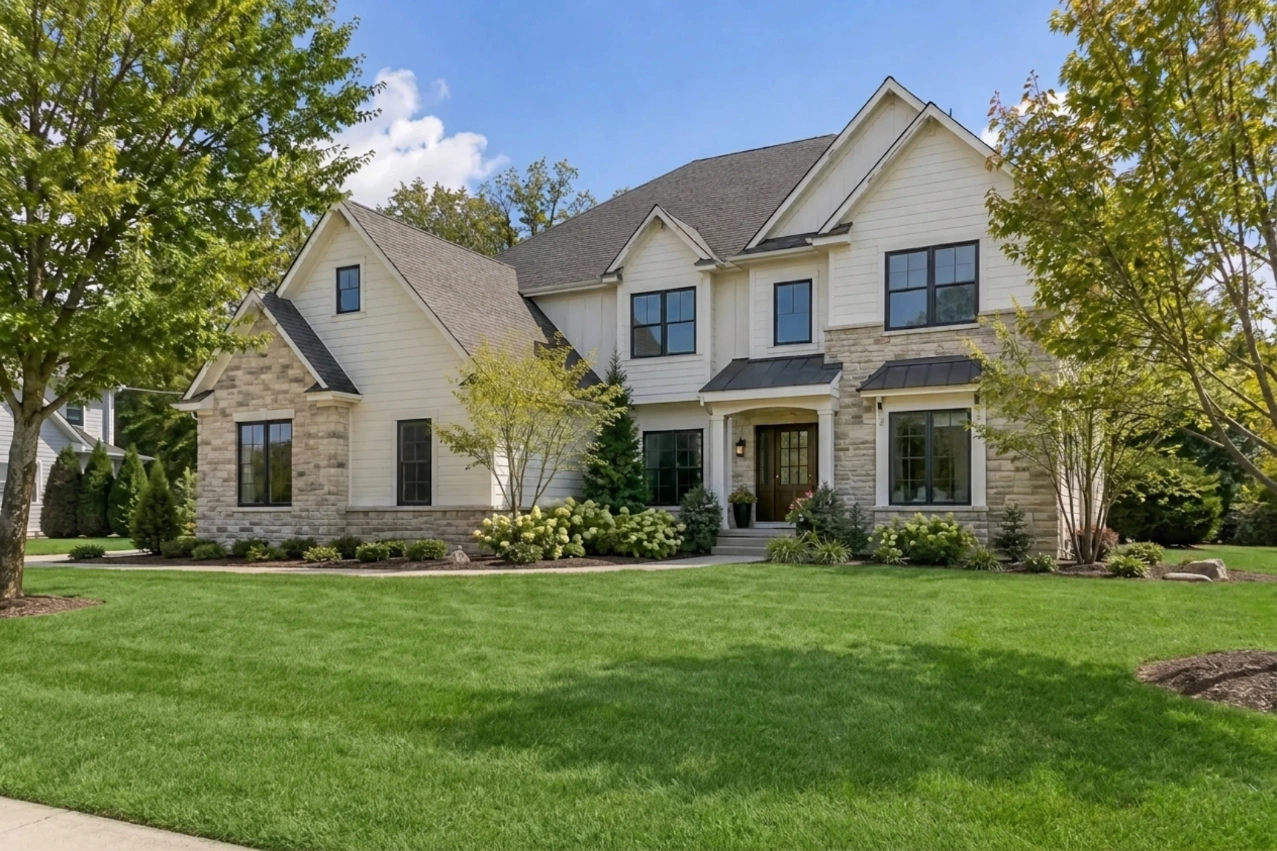
Replace the visible lawn appearance in a property photo to preview a refreshed landscape.
Example
Upload the exterior · Generate
The lawn becomes greener. Drag to inspect the boundary against the walkway and planting beds.
1. Start with the right photo
An exterior photo with a clearly visible lawn area.
2. Generate the lawn replacement
Choose Generate beneath the exterior image.
3. Generate and inspect
Drag the result against the original and inspect the edges around paths, beds, and trees before saving.
See the tool settings example
Changing Seasons
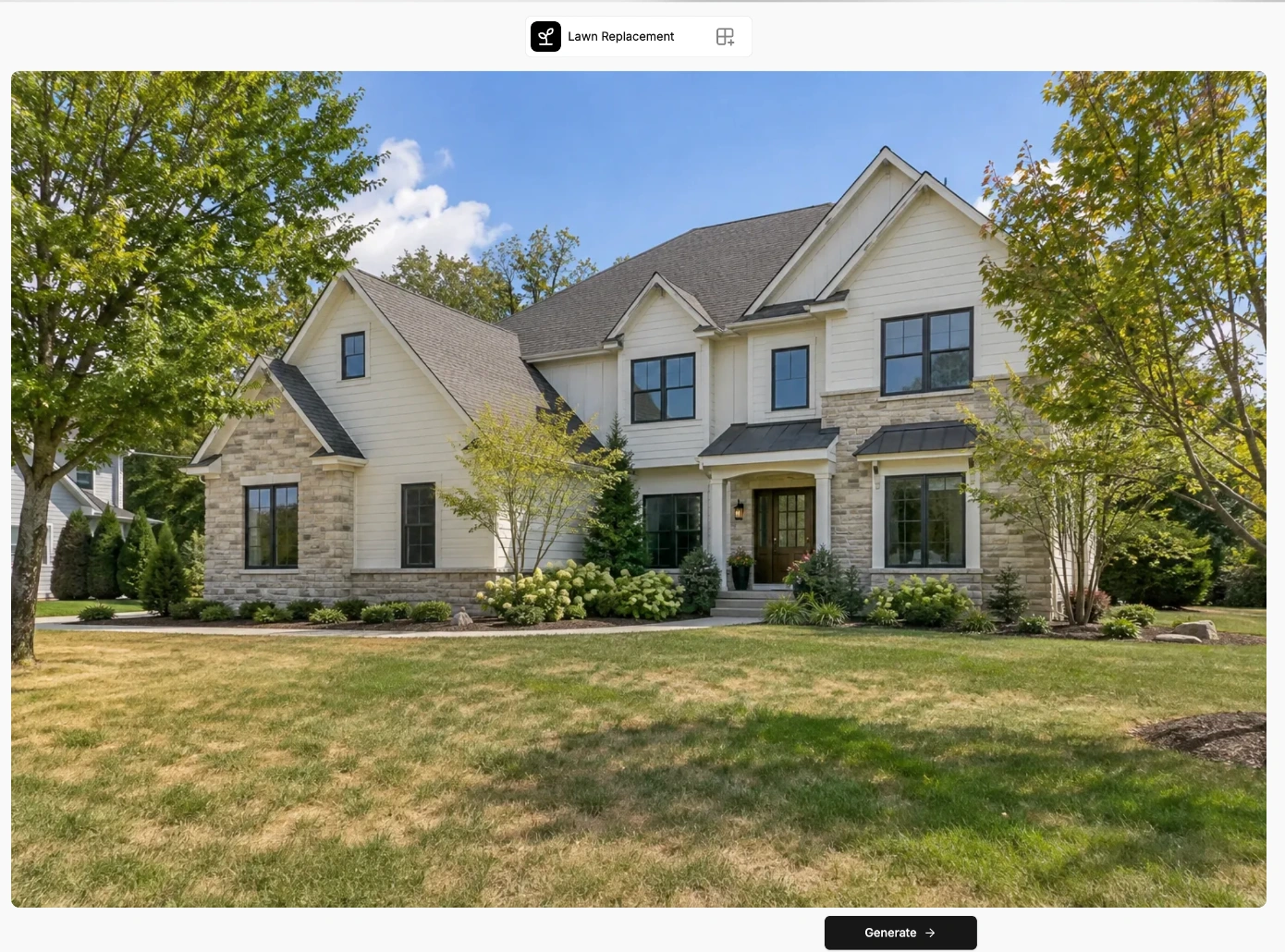
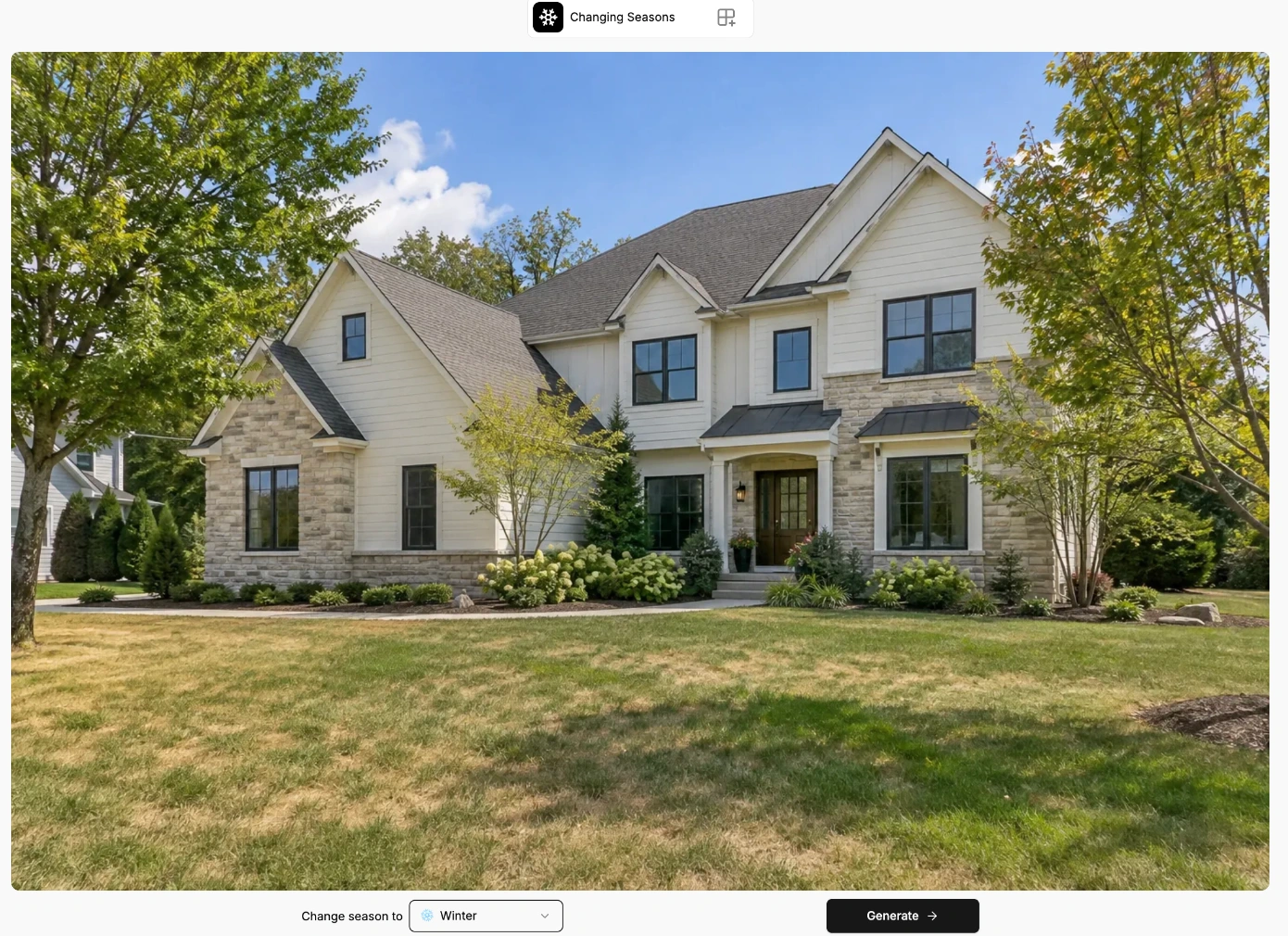
Change the seasonal appearance of the outdoor surroundings in a property photo.
Example
Change season to Winter · Generate
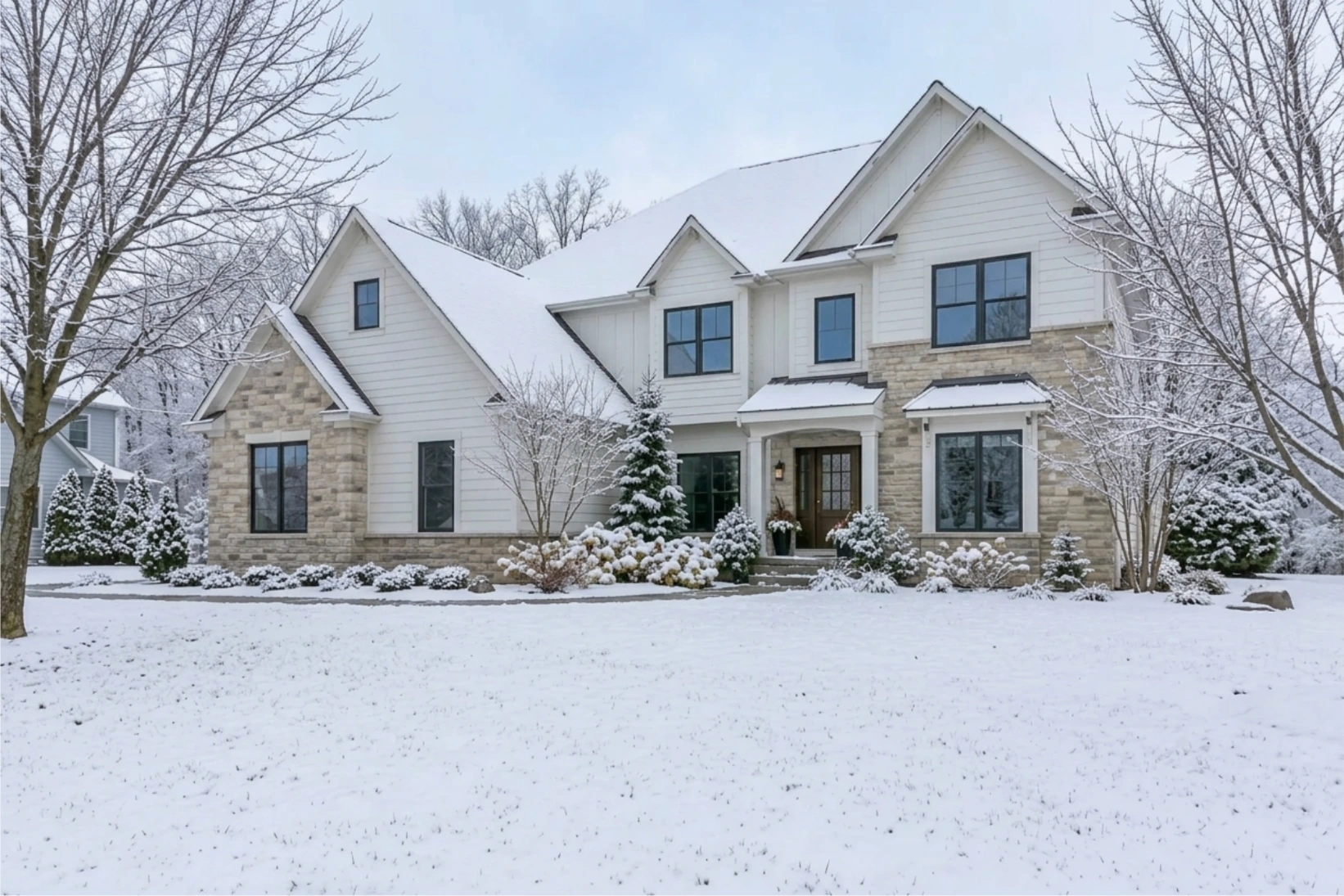
Snow covers the lawn and roof, while the trees become bare. Check permanent features alongside the seasonal changes.
1. Start with the right photo
An exterior photo with visible trees, plants, or other seasonal details.
2. Choose the target season
Use Change season to and choose a season. This example selects Winter.
3. Generate and compare the seasonal result
Choose Generate, then compare the snow and foliage with the source. Check the building and other permanent features before saving.
See the tool settings example
Edit pool water
Enhance existing water or visualize an empty pool filled with water.
Pool Water Enhancement
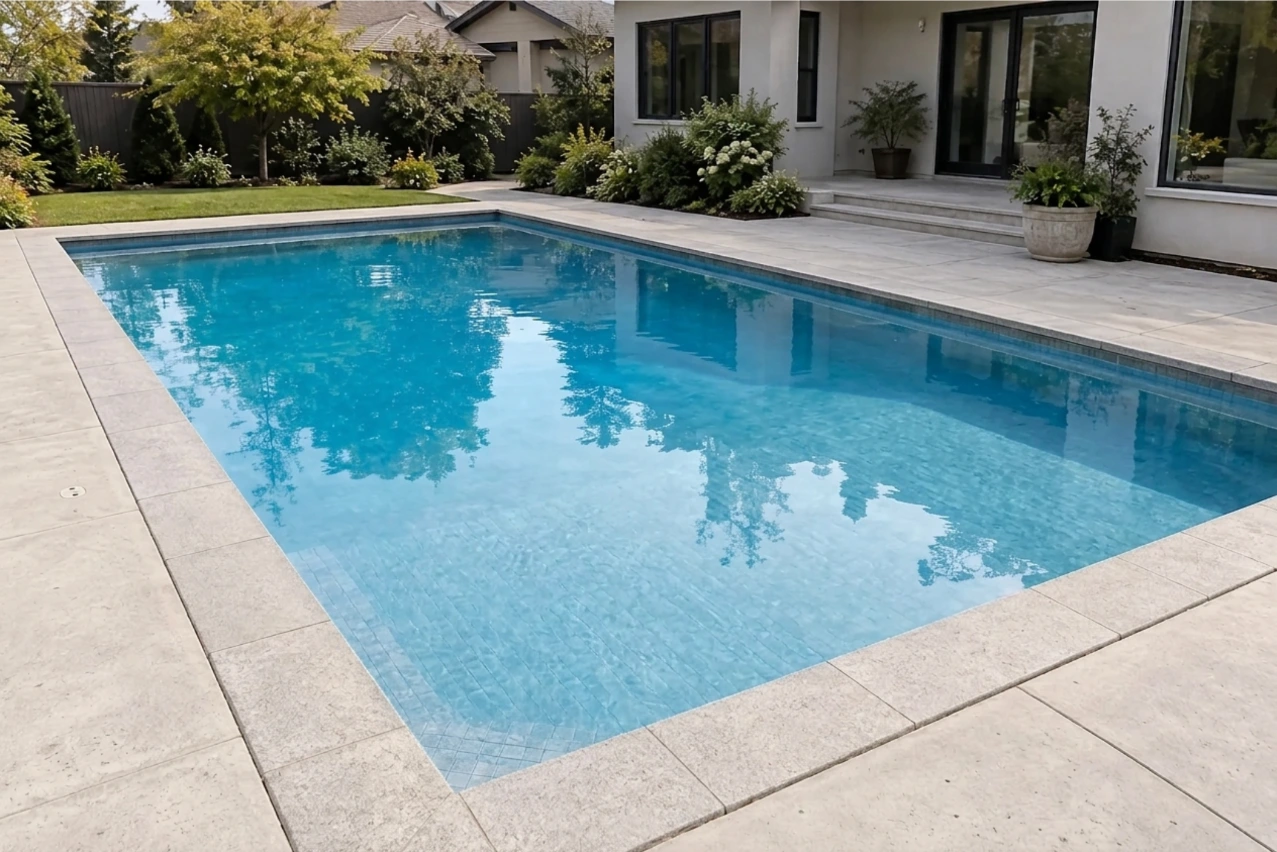
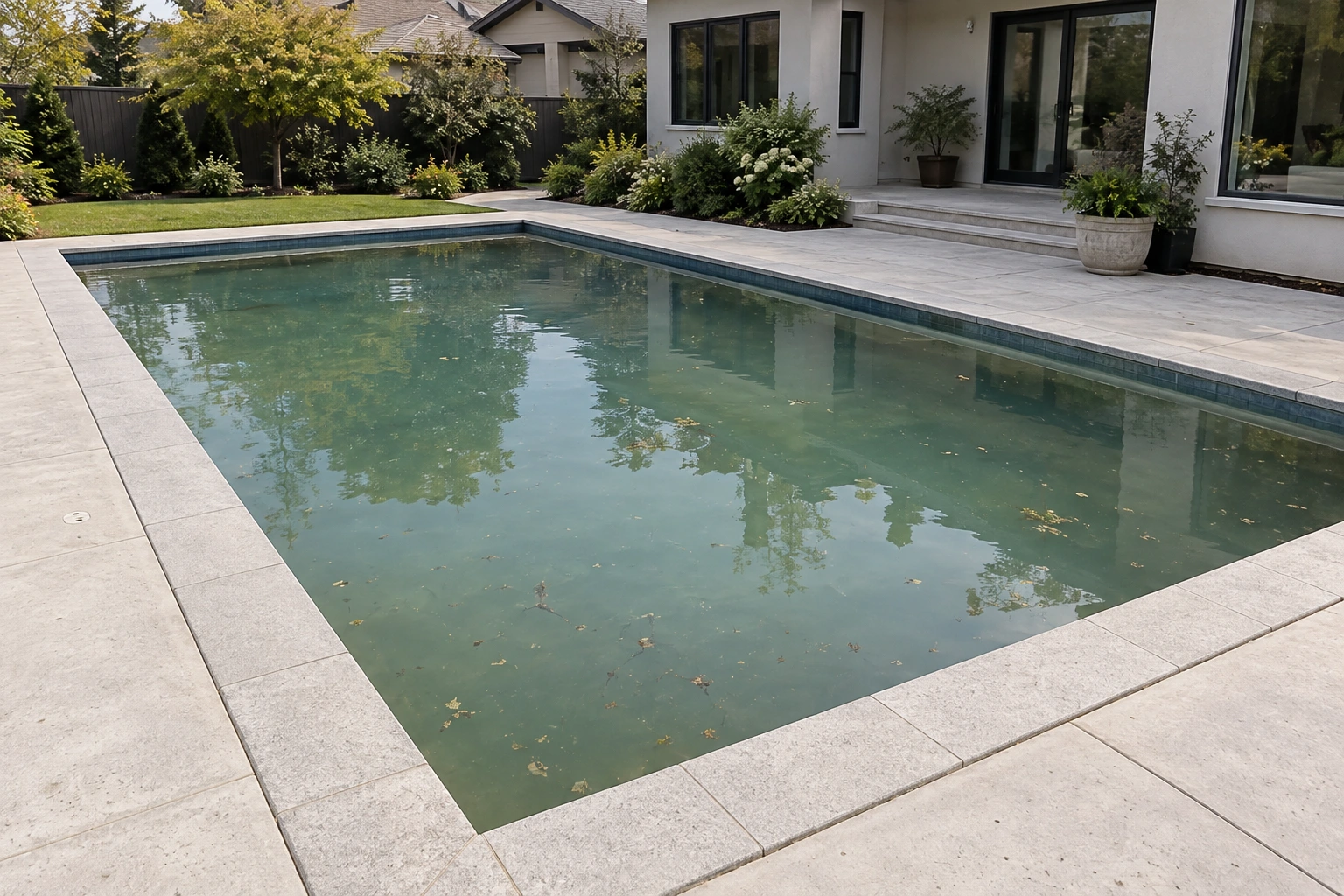
Improve the appearance of water already present in a pool, including its clarity and color.
Example
Upload the filled-pool photo · Generate
The water changes from dull green-gray to bright blue, with more pool-bottom detail. Inspect the waterline, reflections, and pool edges.
1. Start with the right photo
A pool photo that already contains water, with visible pool edges.
2. Generate the water treatment
Upload the photo of a pool that already contains water, then choose Generate beneath the image.
3. Inspect the waterline
Compare the waterline, pool shape, reflections, and deck with the original before saving.
See the tool settings example
Add Water to an Empty Pool
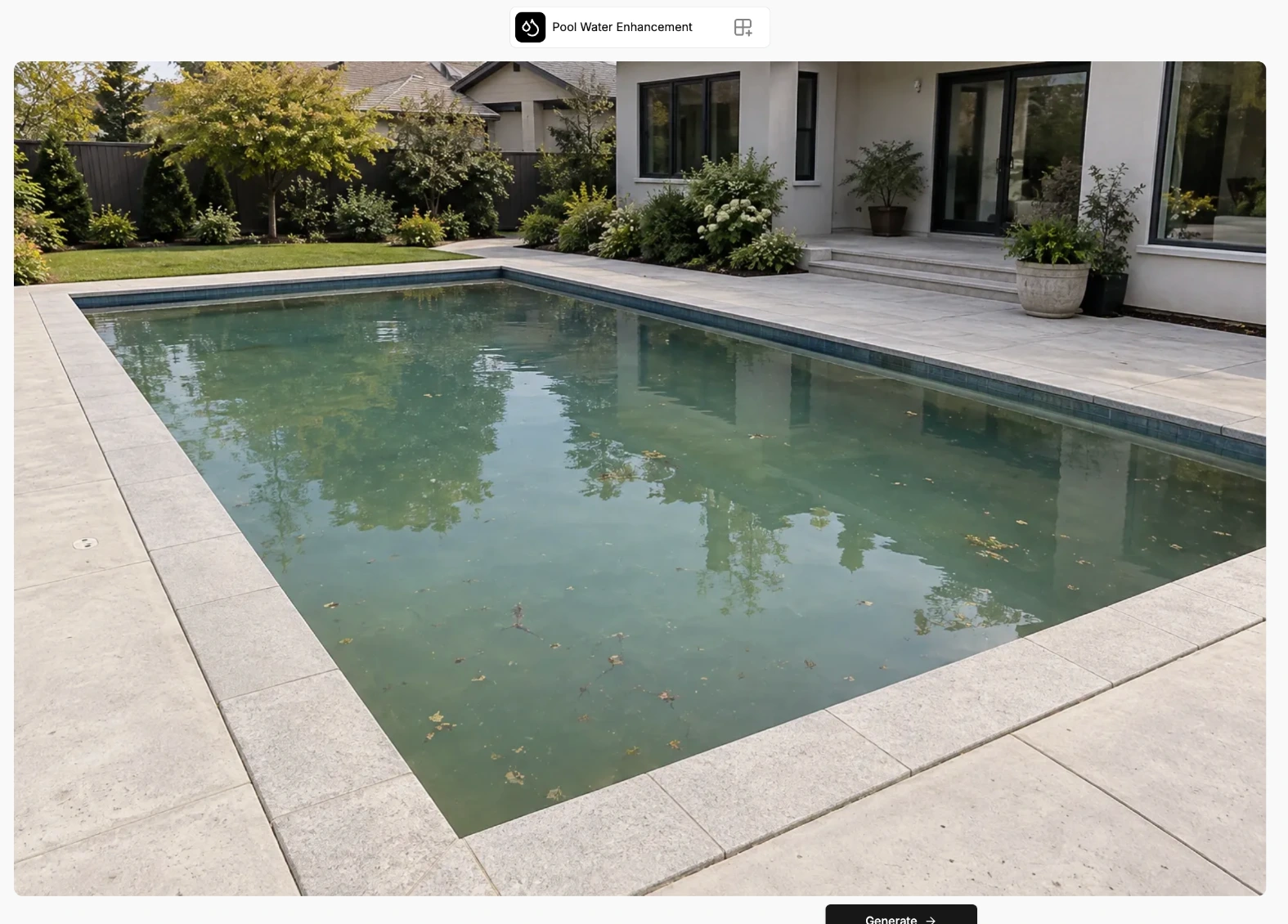
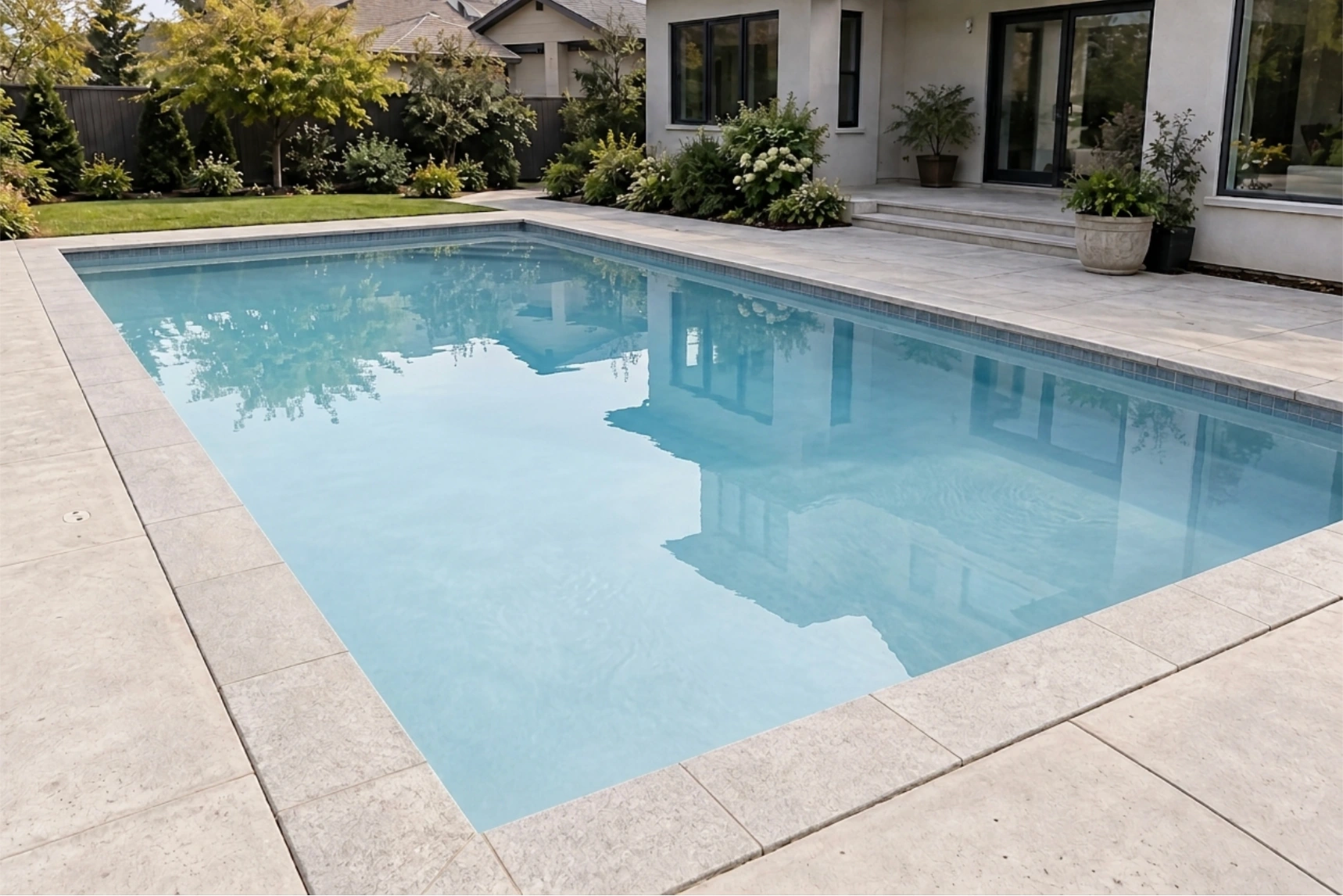
Visualize an empty pool with water added to the photo.
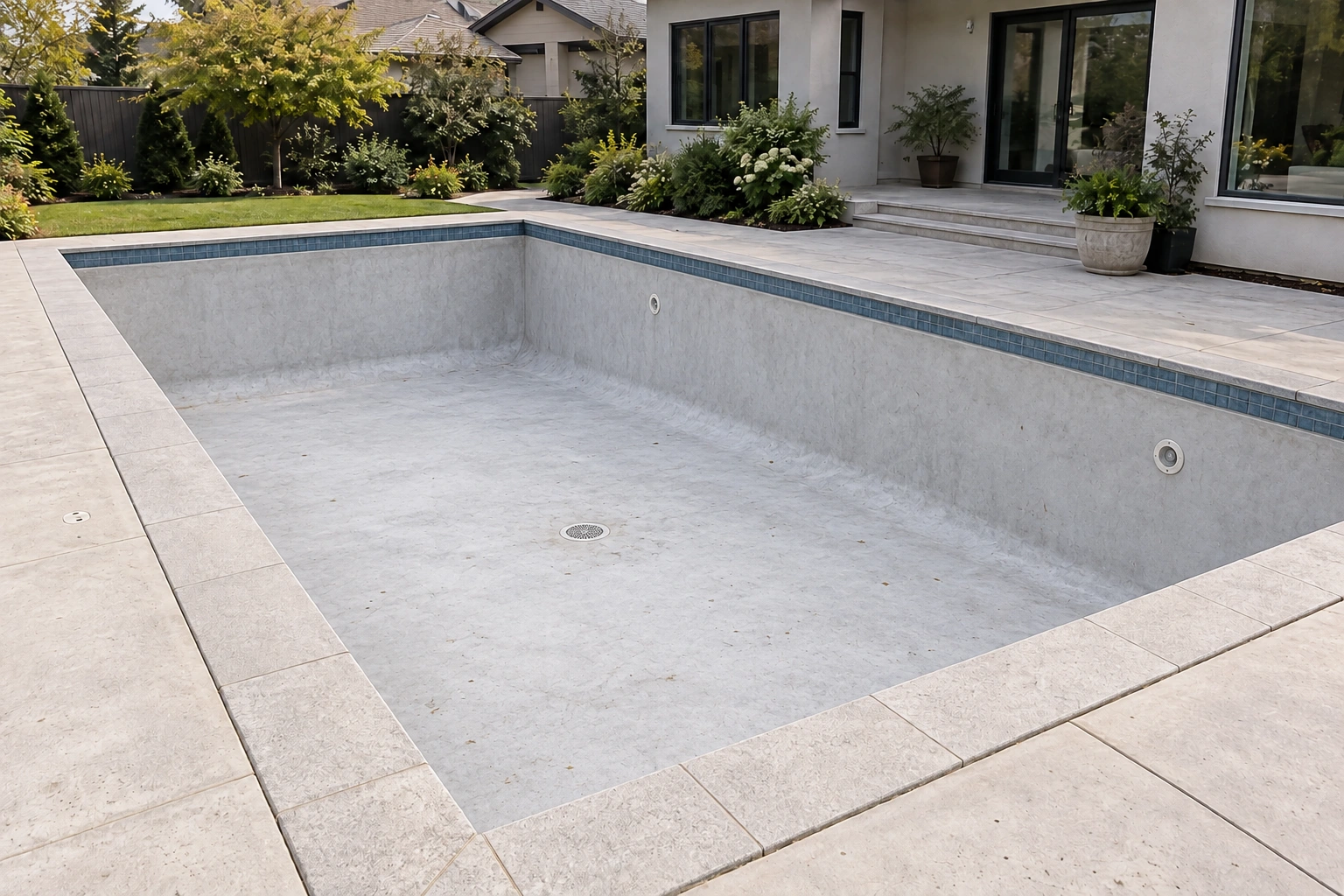
Example
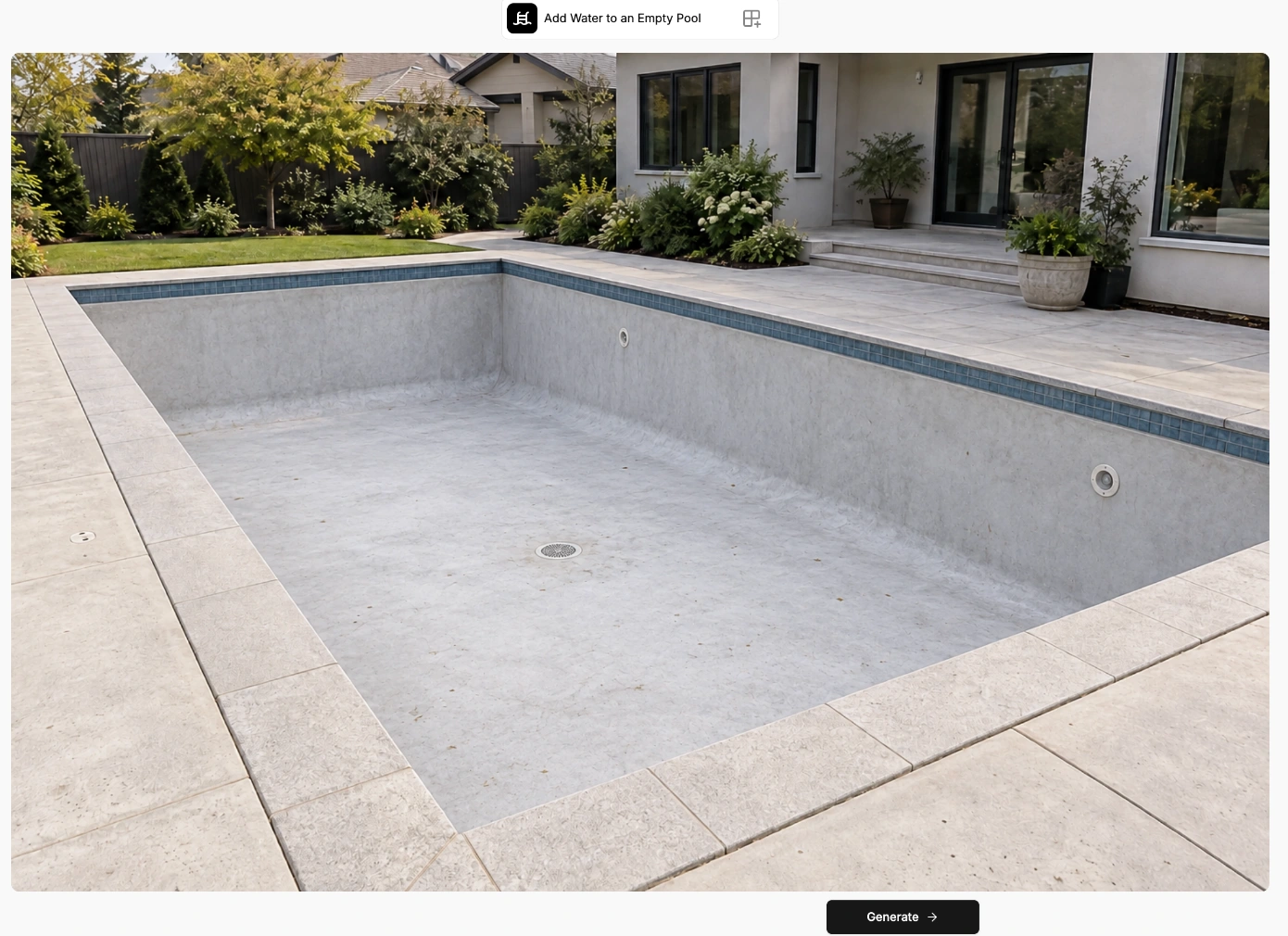
Upload the empty-pool photo · Generate
Water fills the empty basin. Compare the waterline, pool perimeter, and reflections with the source.
1. Start with the right photo
An empty pool with clearly visible edges and a clear view of the interior.
2. Generate the filled-pool preview
Upload the empty-pool image, then choose Generate beneath it.
3. Review the filled-pool preview
Inspect the waterline, reflections, pool perimeter, and surrounding deck before saving.
See the tool settings example
AI Holiday Card
Turn a property photo into a seasonal greeting and personalize the finished card.
Turn a property photo into a seasonal greeting, then personalize the finished card with text, an image, or branding.
Original
Result
Example
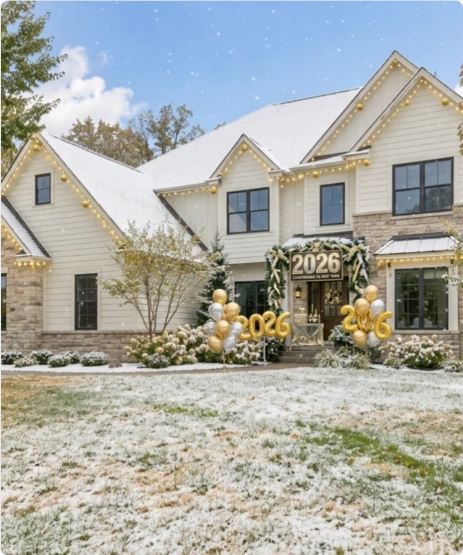
New Year · warm christmas cabin vibe with light snowfall
The finished card adds snow, lights, and 2026 decorations. Match the prompt to the occasion, and check the year and any text before sharing.
1. Start with the right photo
A clear property photo with room for any seasonal treatment you choose.
2. Choose an occasion and describe the card
Upload the property photo, select the occasion, and describe the seasonal treatment. Keep the prompt consistent with the occasion you choose, then start generation.
3. Personalize, review, and download
After generation, use Add Text, Add Image, or Add Branding as needed. Check the greeting and year, then use Download or Save.
See the tool settings example