Watch the walkthrough
Follow the complete upload-to-download workflow in this video.
1. Upload your room photo
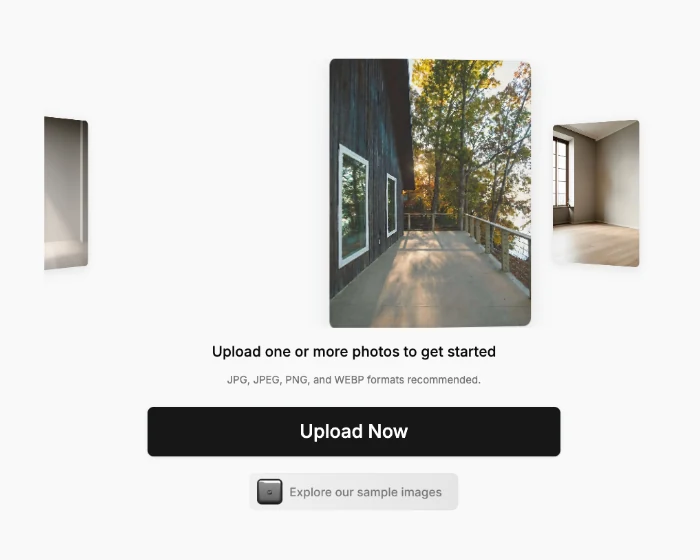
Sign in to Collov, open AI Virtual Staging, select Upload Now, and choose your photo. The upload screen recommends JPG, JPEG, PNG, or WEBP.
2. Prepare the room
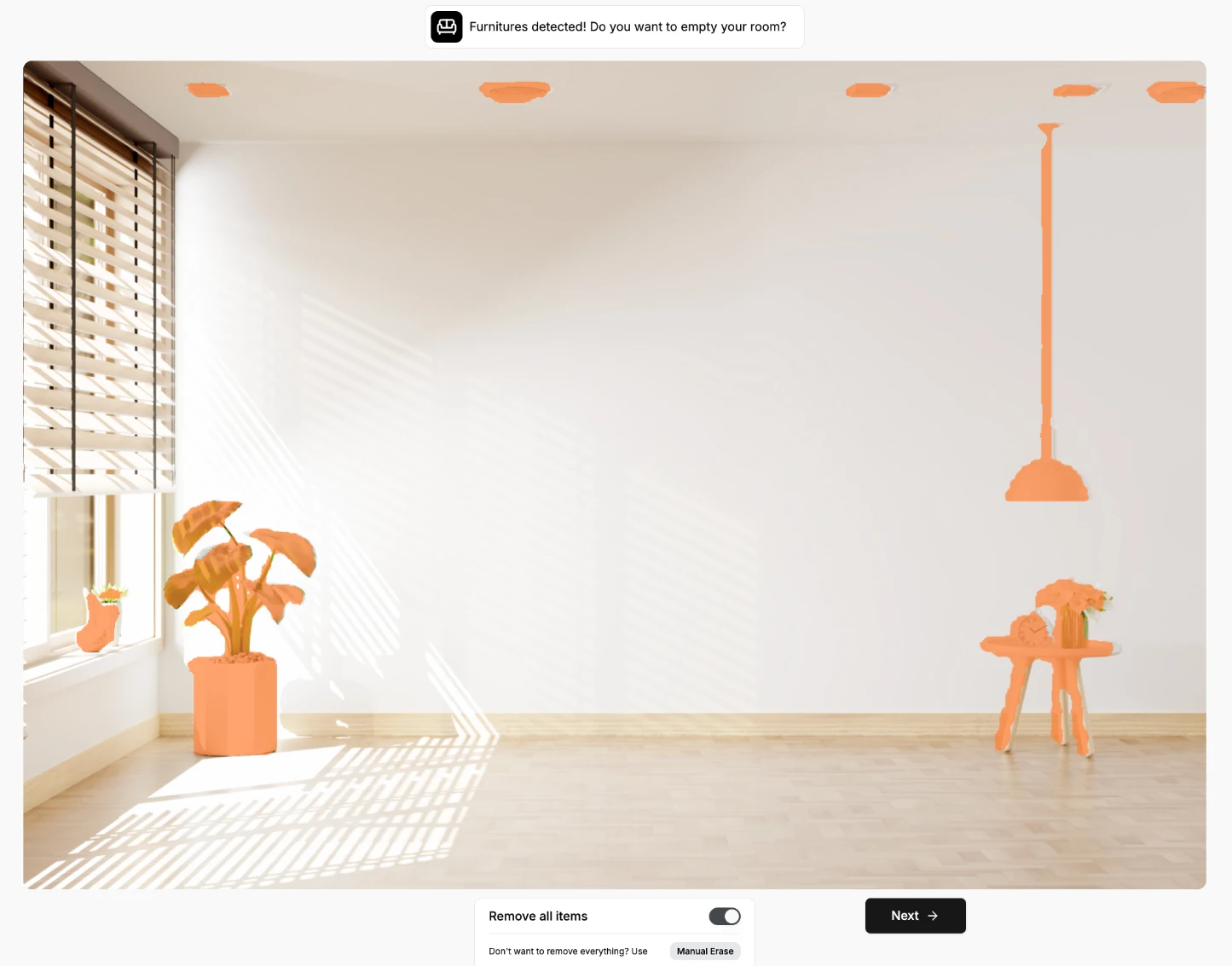
Review the orange highlighted items. To clear the detected furniture, enable Remove all items and select Next.
Tip
Use Manual Erase if you want to select a smaller area or a fixed feature has been highlighted.
3. Choose the room type and style
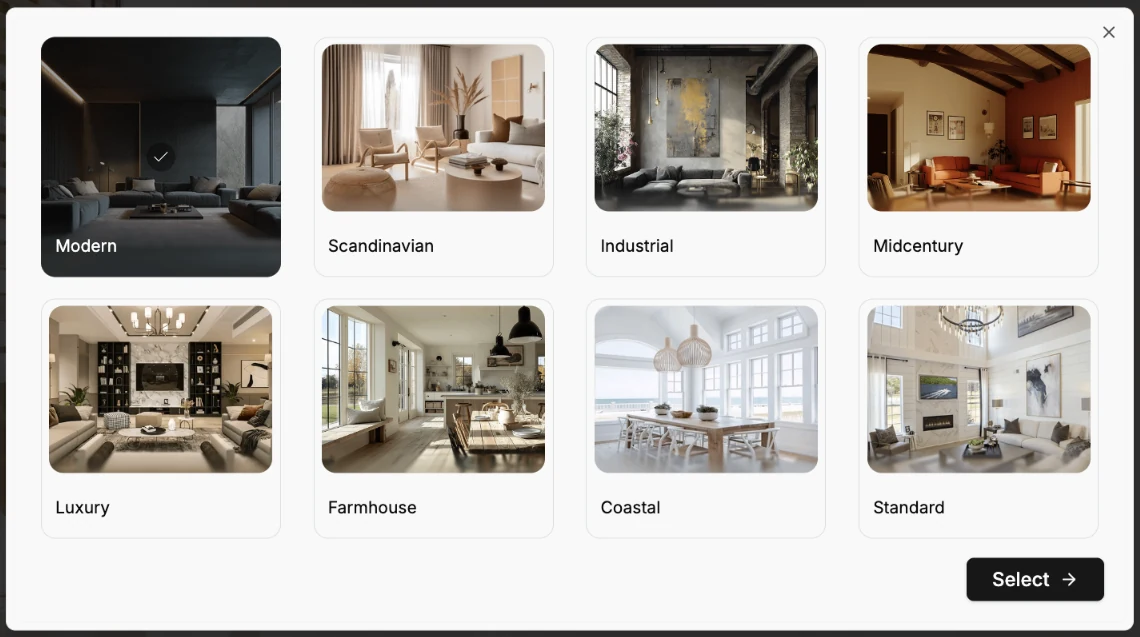
Design style: Modern
Open Design Styles, choose Modern, then click Select.
Room type: Living Room
Open Room Types, choose Living Room, and click Select.
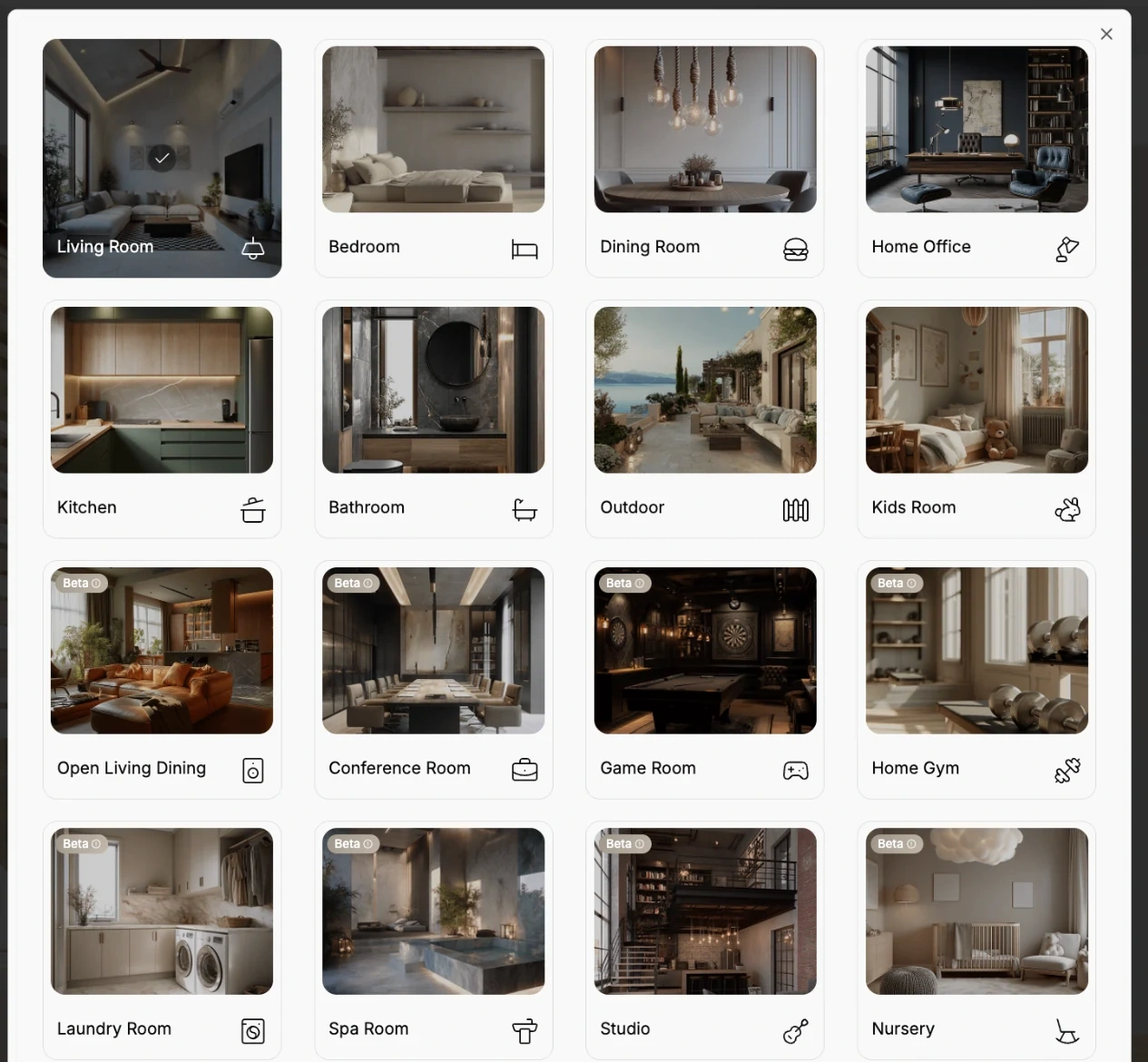
4. Generate and compare the result
Choose Generate. When the result is ready, use the thumbnails to view your generated versions.
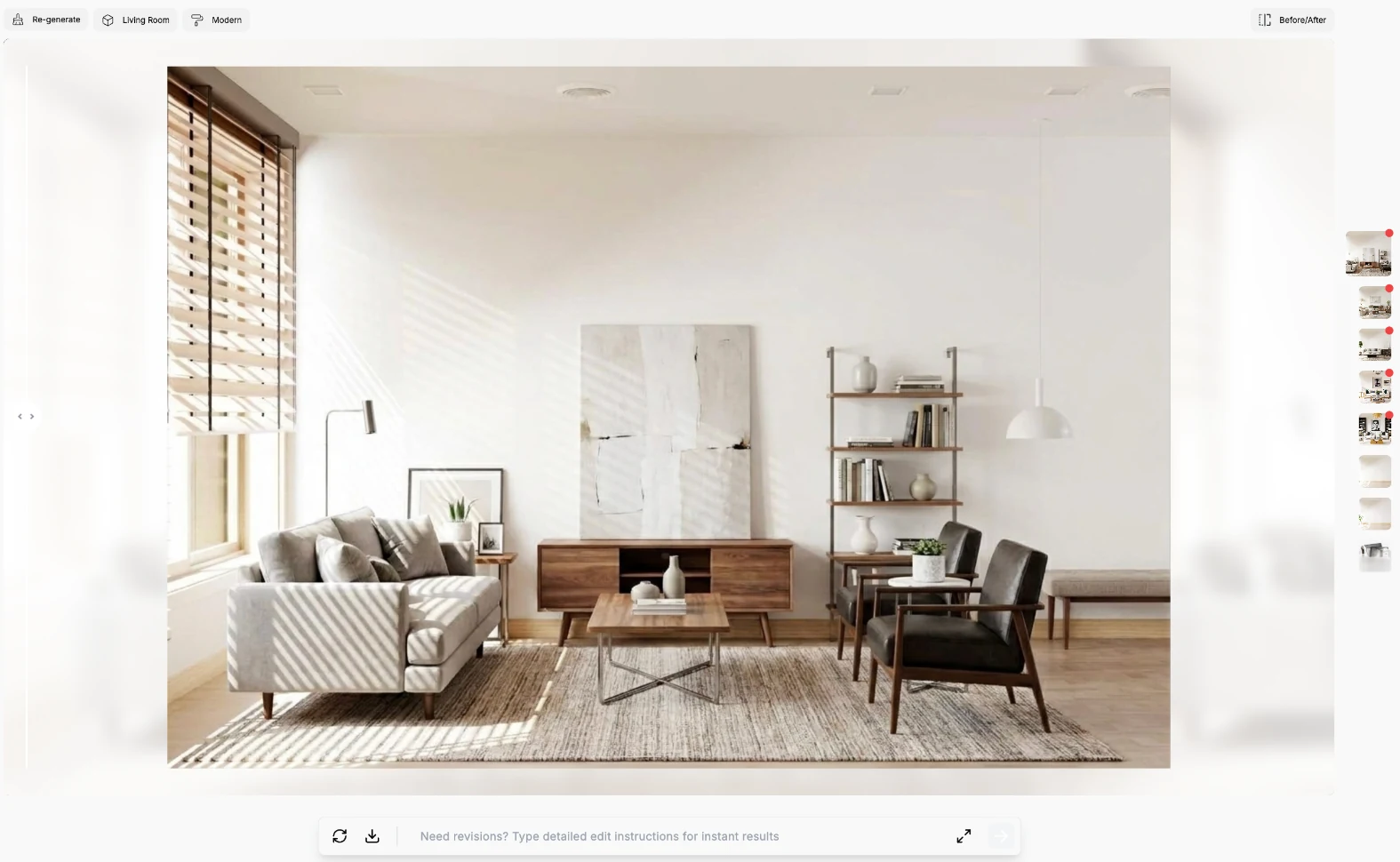
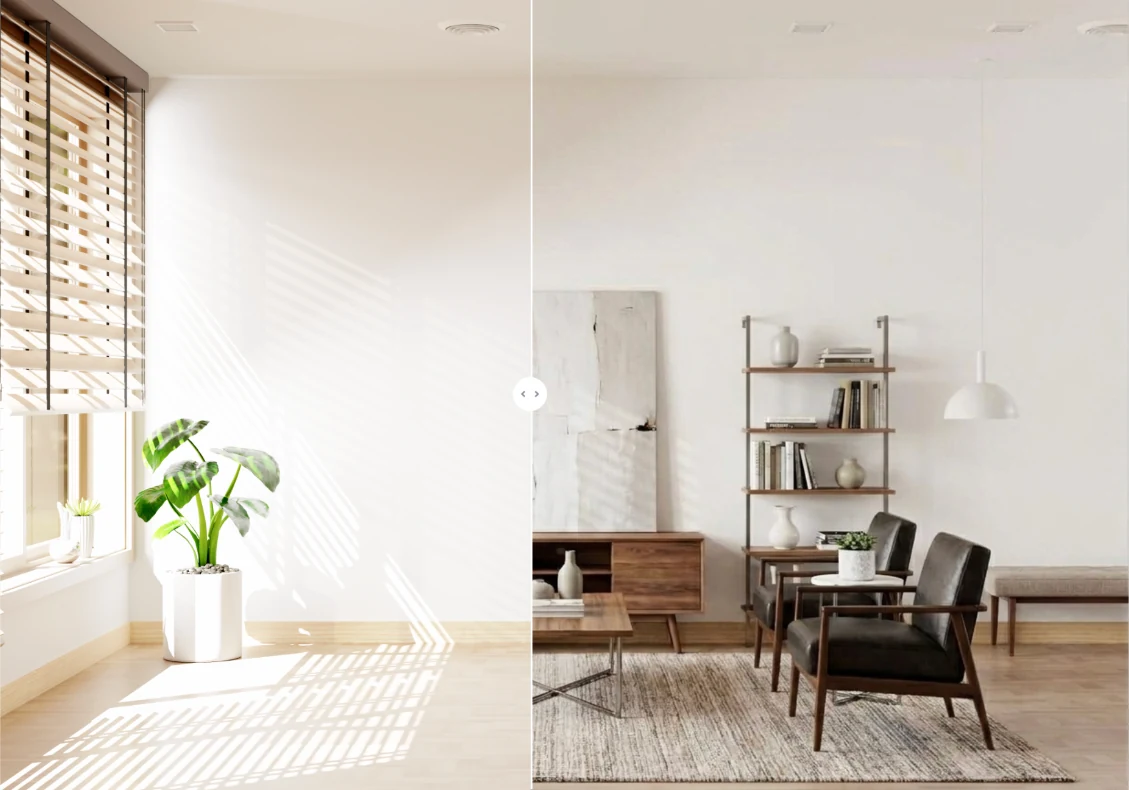
Use Before/After to compare the result with the original room. Check fixed features, furniture scale, and walkways.
Make a specific edit
Try Regenerate for another room style, or use a focused chat edit such as “Change the sofa upholstery to light beige linen.”
5. Download your selected image
Click the download icon under your favorite result. Review Image Format, Resolution, Watermark, and Virtual Staging Disclaimer options, then click Download.
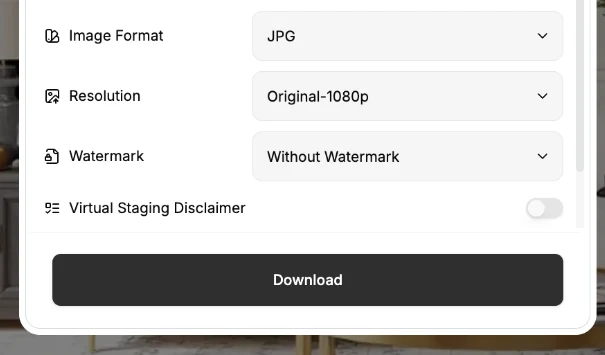
Open the saved file and check its quality and any displayed labels before sharing.
Find an earlier result
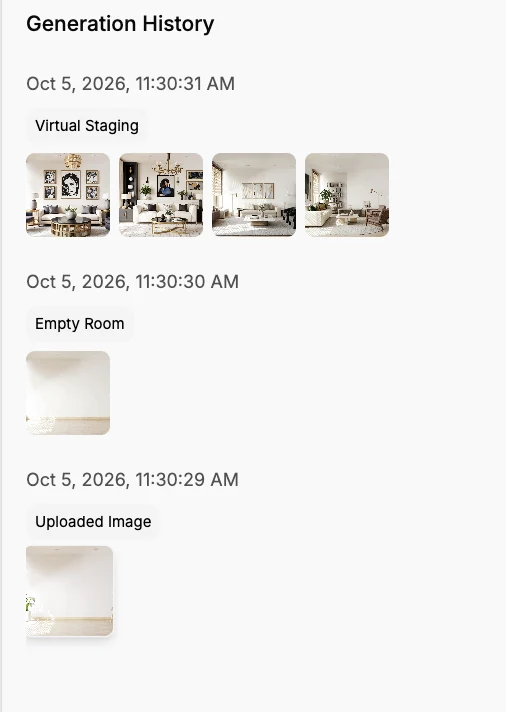
Open Generation History to revisit your uploaded photo, cleared room, and staged versions.