
Collov AI · AI Virtual Tour
How to Create an AI Virtual Tour
Turn your property photos into a finished real estate video with music, custom text, and your branding.
At a glance
Create a tour in four stages
Upload and select your property photos, then build a video that is ready for viewers to explore.
Step-by-step tutorial
Build your property tour
Follow the workflow below from photo selection through the finished video.
Step 01
Select your property photos
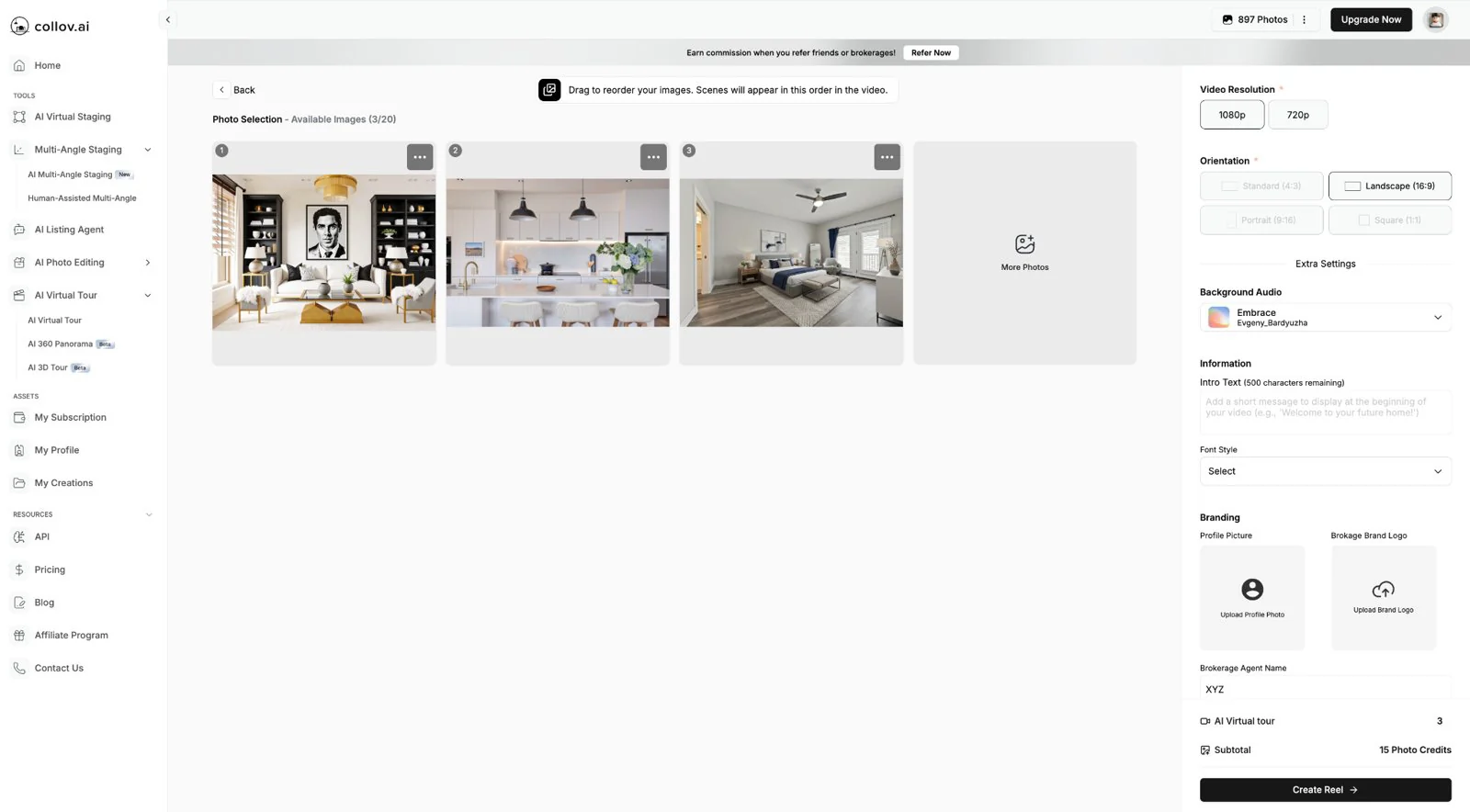
Upload and select the photos you want to include in this video. Select Upload Now, or choose a file or drag & drop it onto the upload area. JPG, JPEG, PNG, and WEBP formats are recommended. Select complementary photos that show the property clearly.
- Add up to 20 photos.
- Drag photos to control the scene order in your video.
- For example: living room, kitchen, then bedroom.
Photo selection and sequence
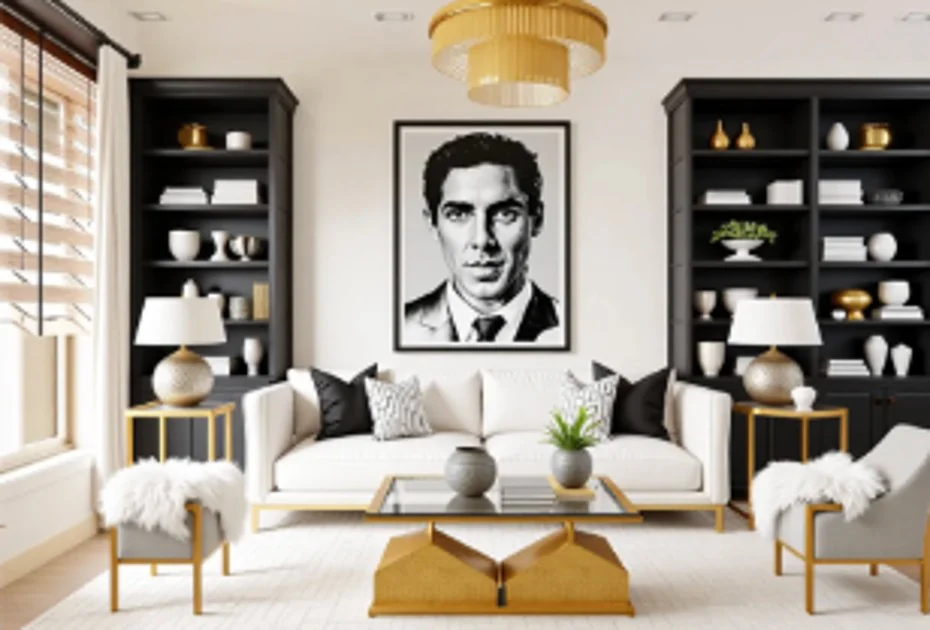
Scene 1:Living room 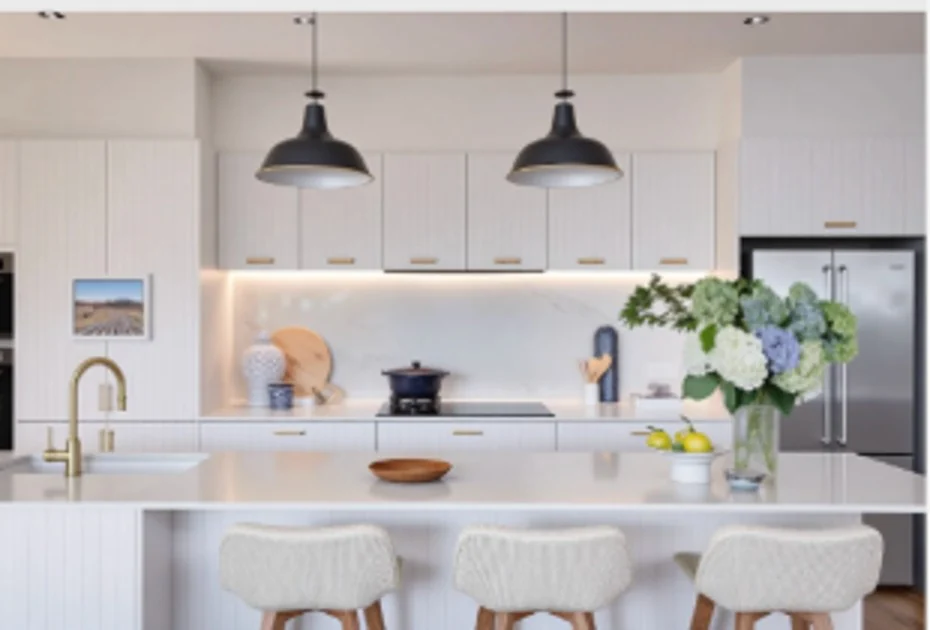
Scene 2:Kitchen 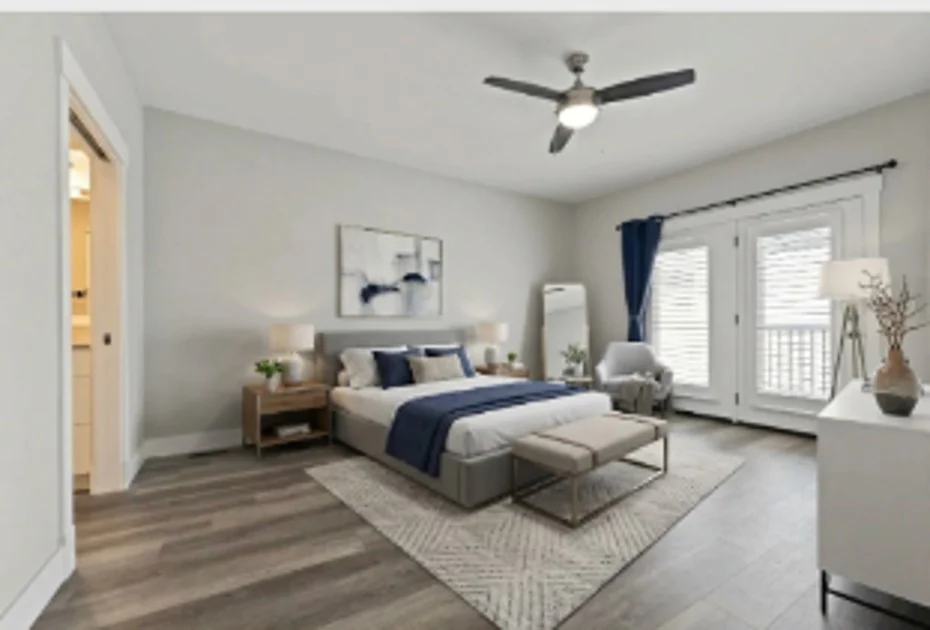
Scene 3:Bedroom
Step 02
Customize your video
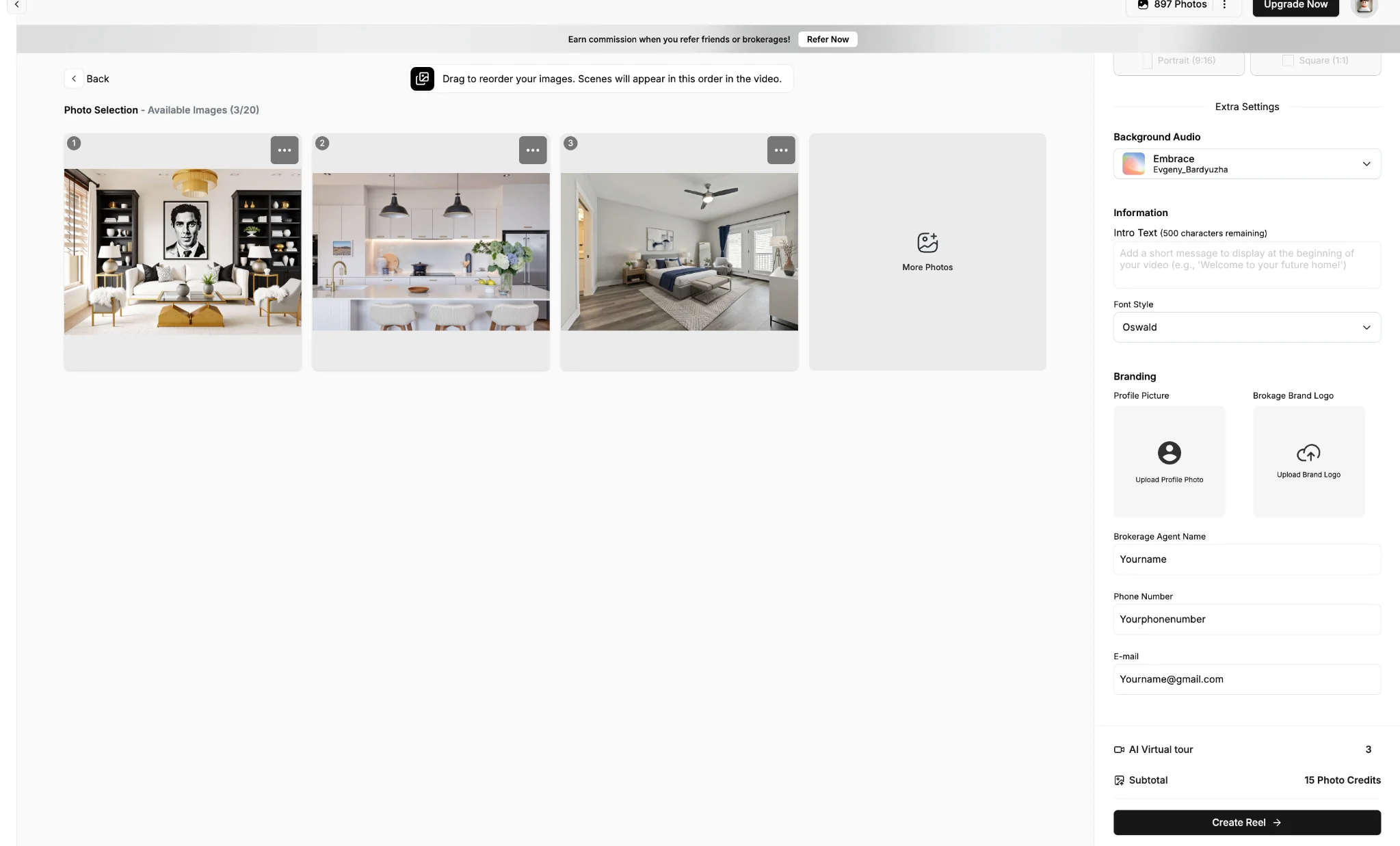
Set the video format and choose how your tour sounds and opens. For this example, we use 1080p landscape video and a short welcome message.
- Choose Video Resolution and Orientation.
- Select your Background Audio.
- Enter Intro Text and pick a Font Style.
- Video Resolution
- 1080p720p
- Orientation
- Landscape (16:9)
- Background Audio
- Embrace — Evgeny Bardyuzha
- Intro Text
- Welcome to your future home. Explore beautifully designed living spaces and imagine the possibilities.
- Font Style
- Oswald
Step 03
Add your branding
Personalize the tour with your real estate agent information so viewers can recognize and contact you.
- Upload a Profile Picture and Brokerage Brand Logo.
- Enter your Brokerage Agent Name.
- Add your Phone Number and E-mail.
Branding fields in Collov AI
Step 04
Create your Reel
Review the total displayed at the bottom of the page, then select Create Reel.
- Each selected photo is listed at 5 Photo Credits.
- Three photos have a listed subtotal of 15 Photo Credits.
- Check your account's displayed charge or offer before submitting.
Order summary
- AI Virtual Tour
- 3 photos
- 5 credits per photo
- 15 Photo Credits
- Subtotal shown
- 15 Photo Credits
Inside the editor
Everything in one workspace
Photo selection sits alongside the video options, text, branding fields, and credit summary. Review the page before you submit.
After you create
Check your email for the finished tour
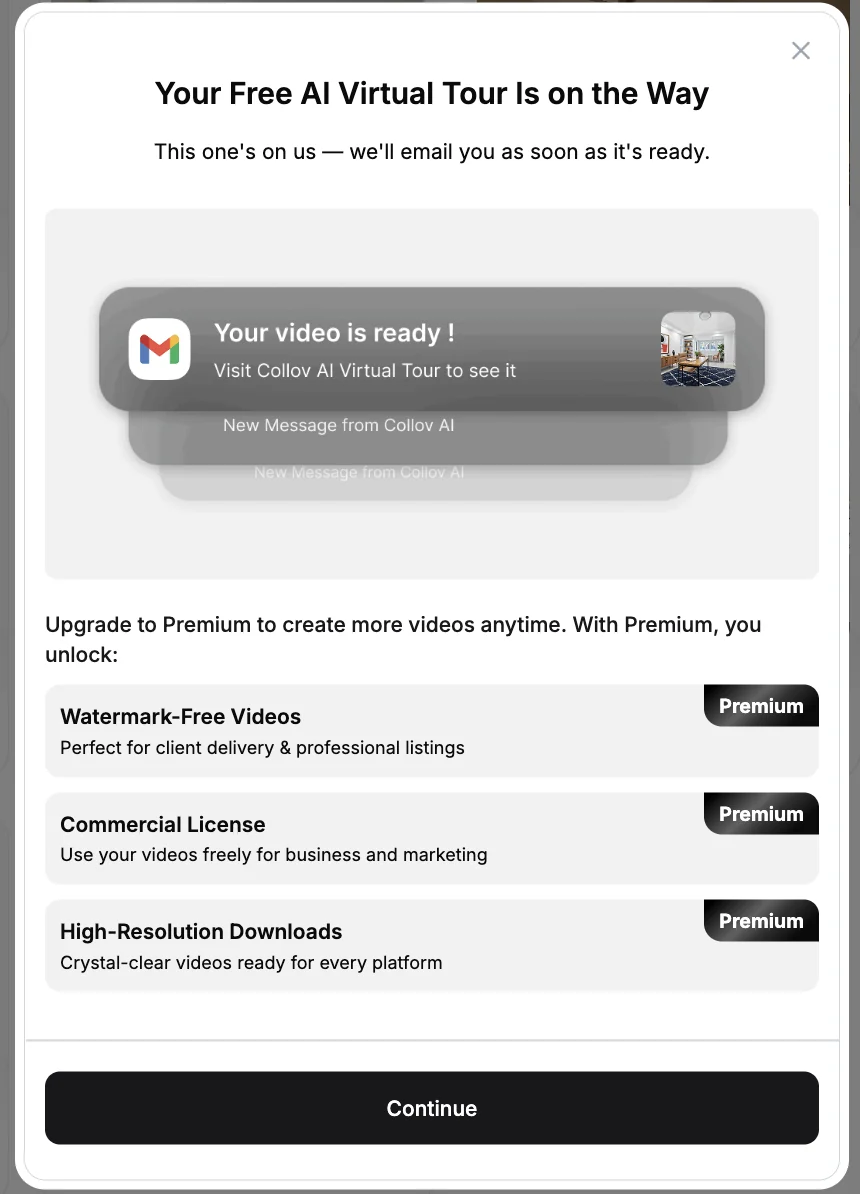
After you select Create Reel, the confirmation screen says Collov AI will email you when the video is ready.
Example finished result
Open the email notification to find your completed tour. The confirmation also shows Premium options for watermark-free videos, commercial licensing, and high-resolution downloads.
Common questions
Before you generate
How many images can I add?
You can select up to 20 photos for a virtual tour.
Can I control the scene order?
Yes. Drag images into the order you want them to appear in the finished video.
How are credits calculated?
The editor shows 5 Photo Credits per photo. Review your actual subtotal and any free offer before submitting.
How do I know when my video is ready?
Collov AI displays a confirmation stating that you will receive an email when your tour is ready.
Continue learning