
Before you start
Prepare clear, well-lit photos of the same room, taken from different angles. This example uses three views of one empty living room.
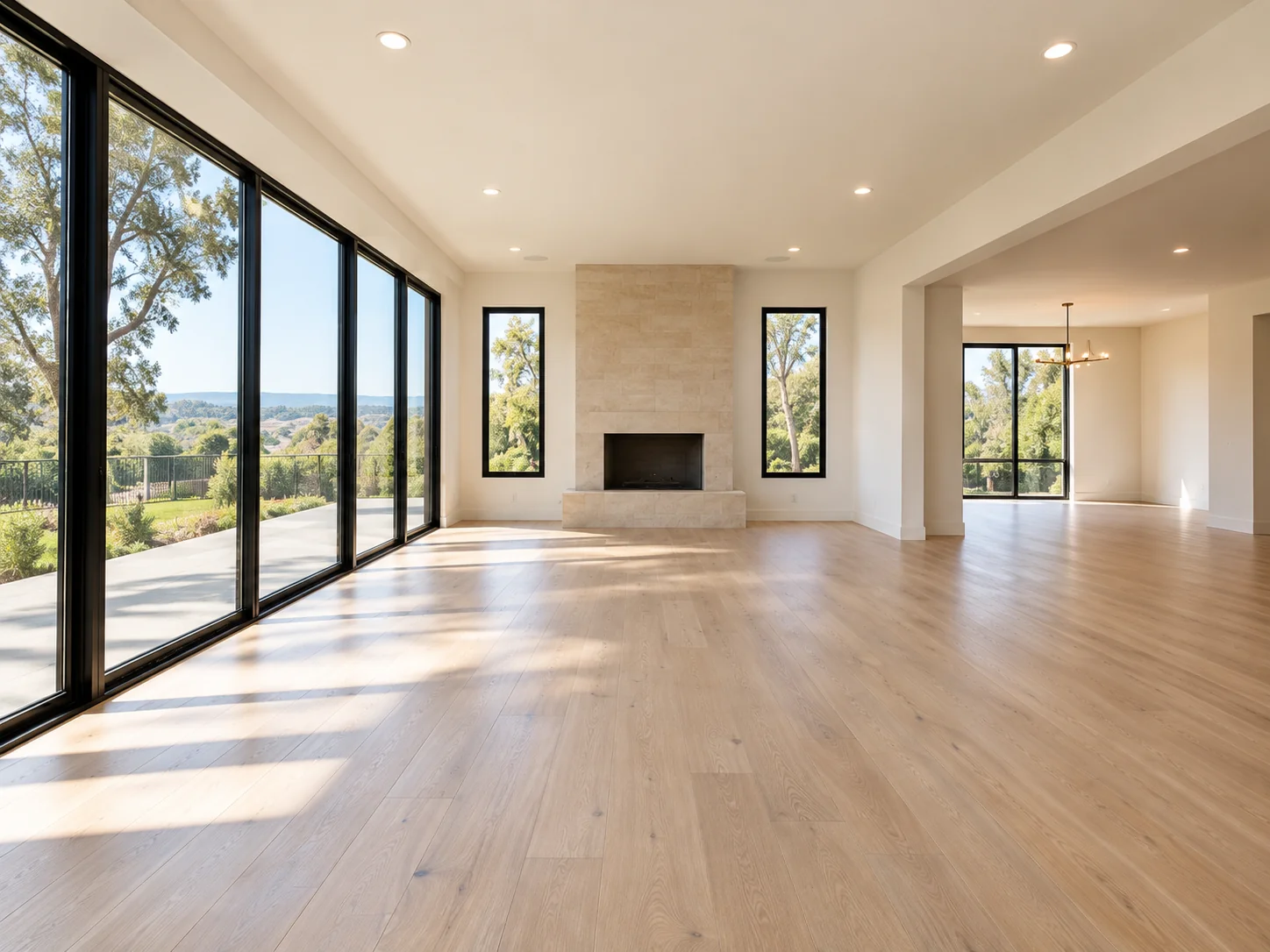
01 · Wide view 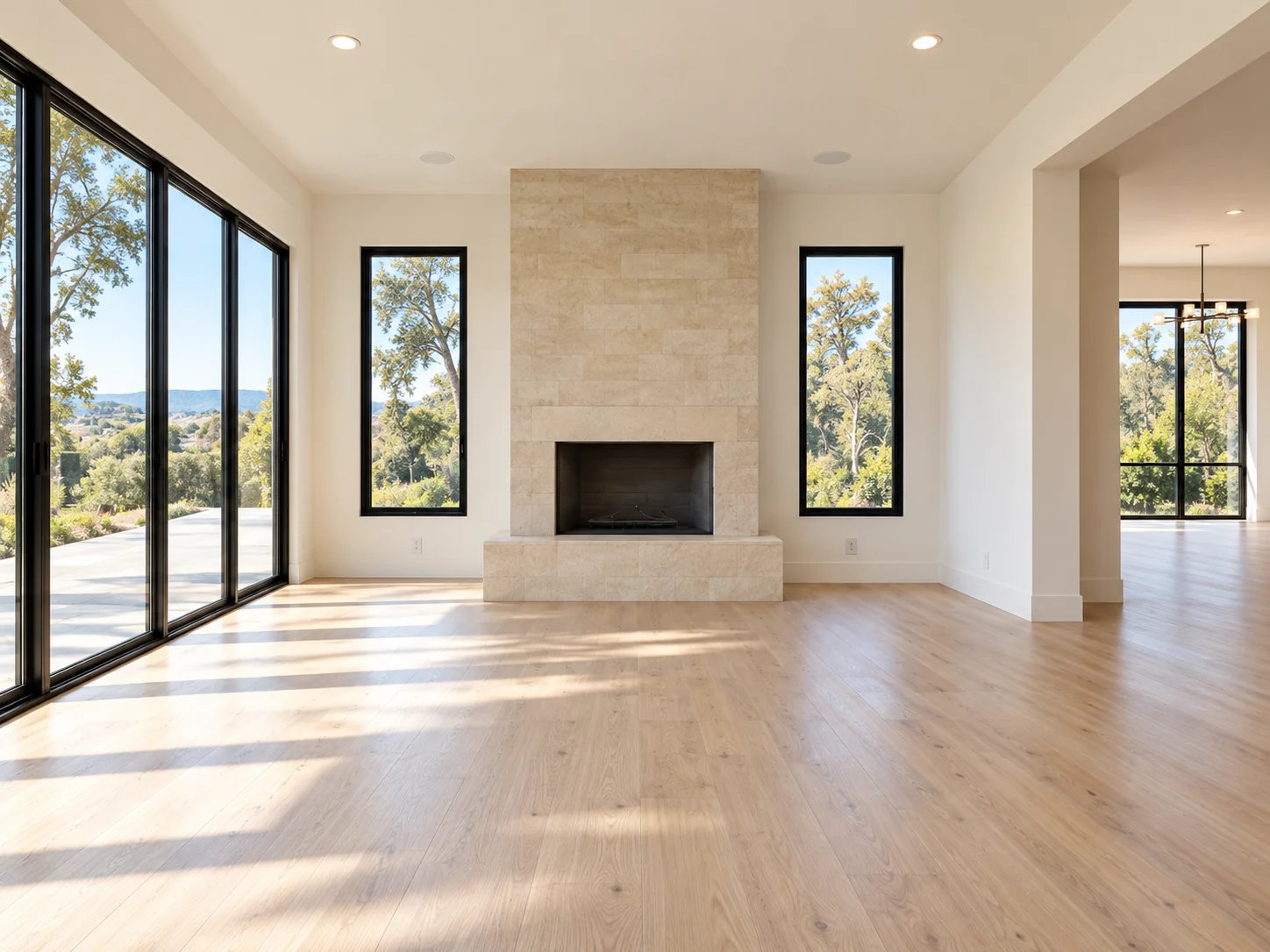
02 · Fireplace view 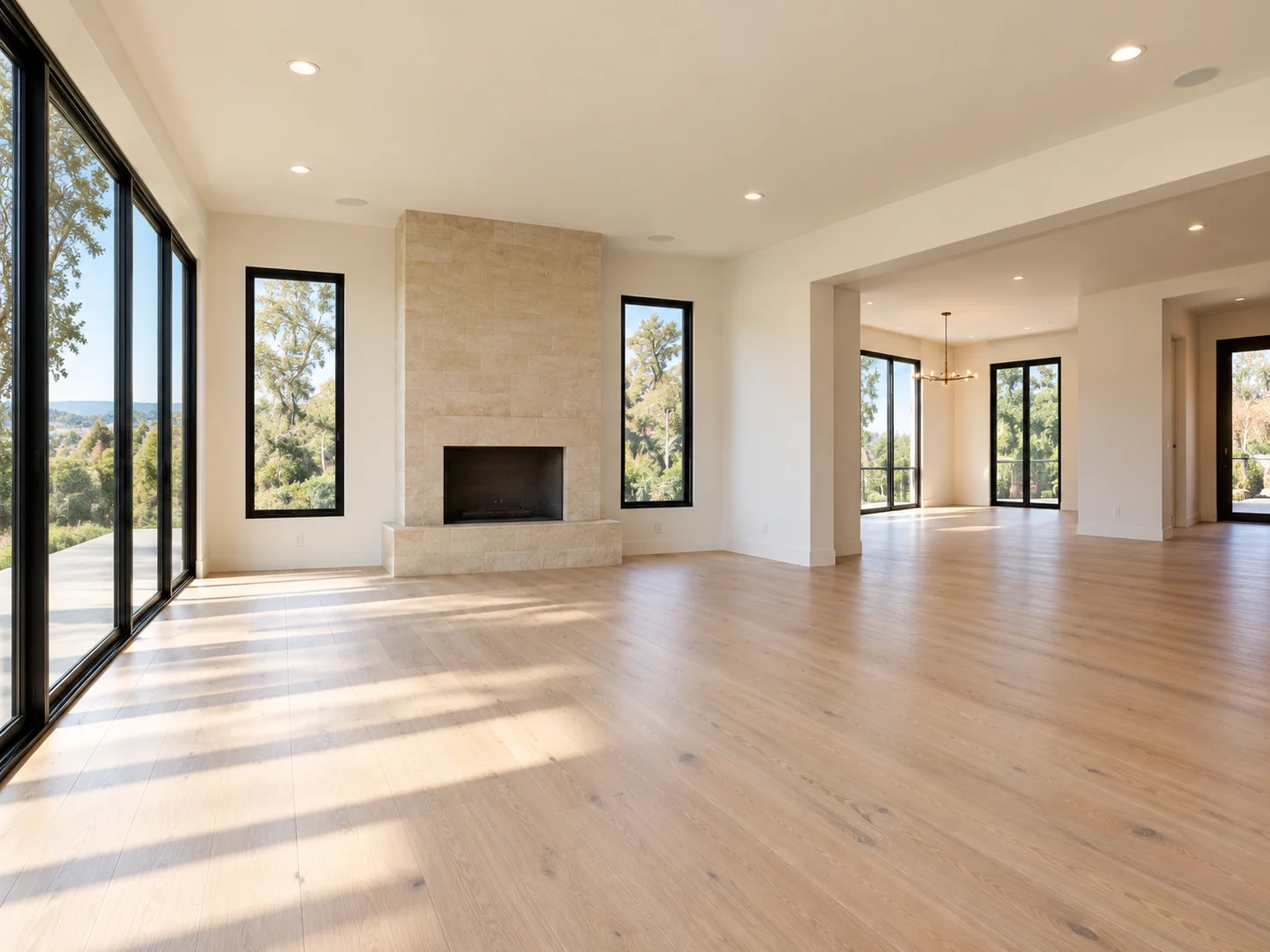
03 · Living & dining view
AI workflow
AI Multi-Angle Staging generates the results in the AI workspace. The Human-Assisted price and email-delivery timeline do not apply to this service.
1. Upload photos of the same room
Open AI Multi-Angle Staging and select Upload Now to add all the views together.
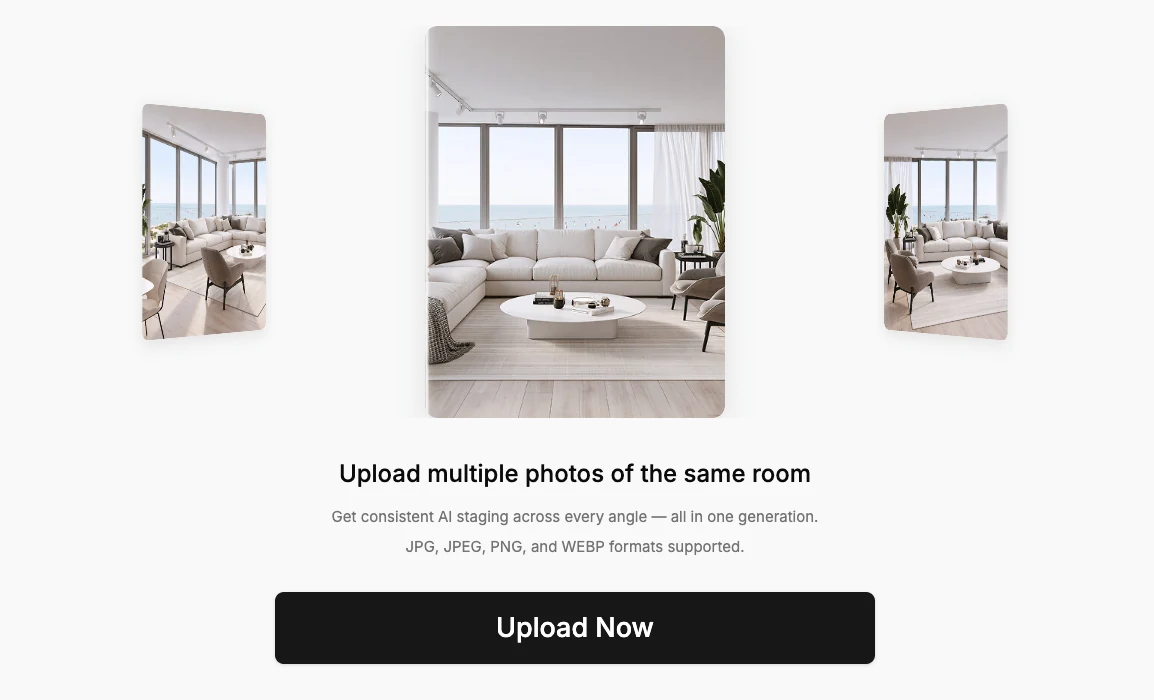
The upload screen recommends JPG, JPEG, PNG, and WEBP formats.
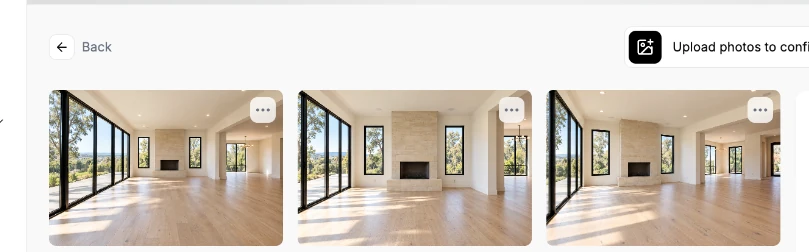
Each photo has its own Remove all items toggle. The rooms in this example are already empty, so the toggles stay off. Select More Photos to add another view.
2. Choose the room type and style
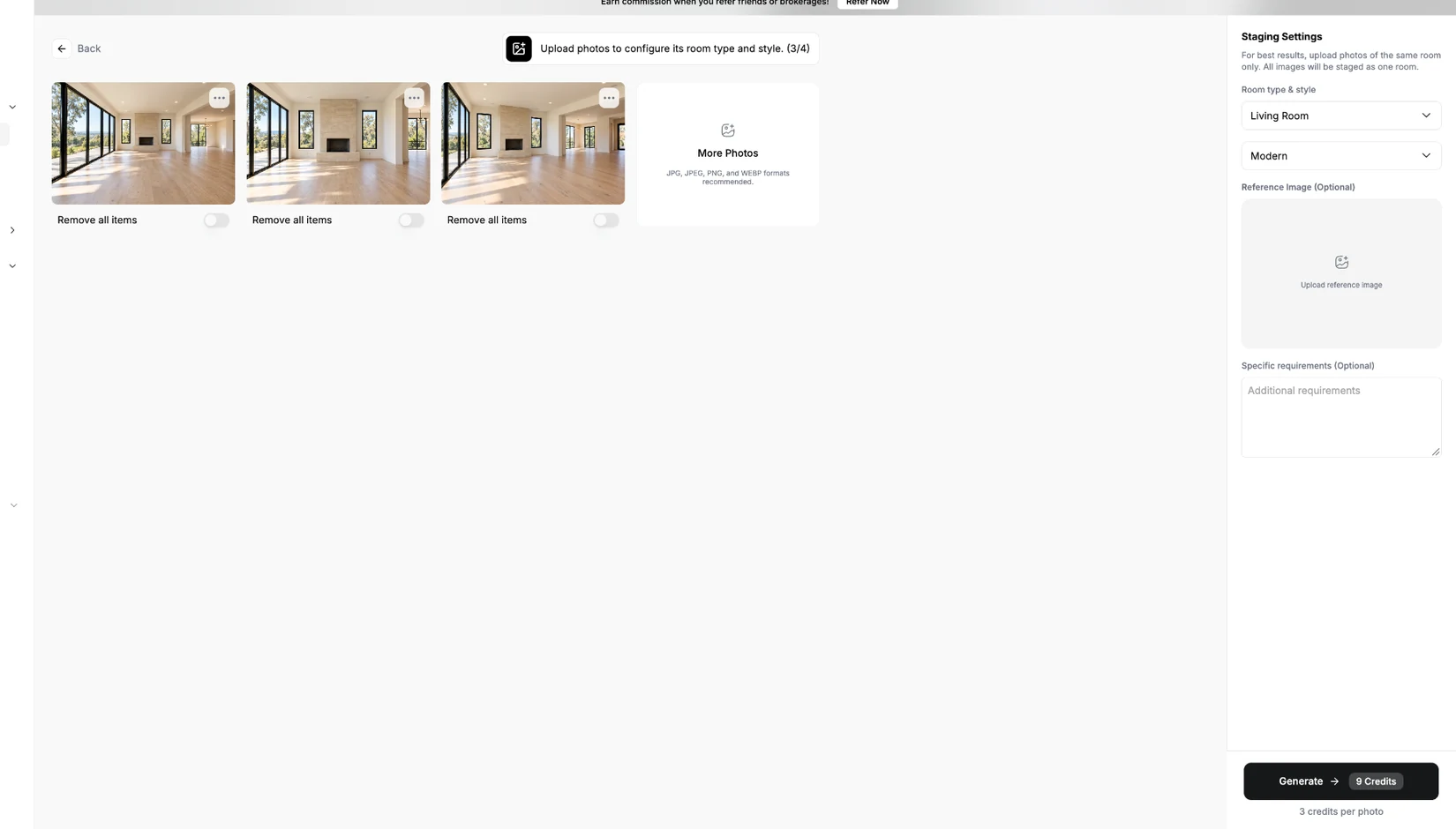
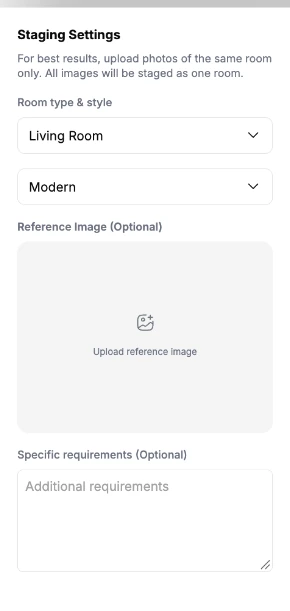
In Staging Settings, pick the room type and design style under Room type & style. Our example used Living Room and Modern.
You can also add a Reference Image (Optional) if you have a preferred look, and use Specific requirements (Optional) for additional guidance.
3. Generate your staged photos
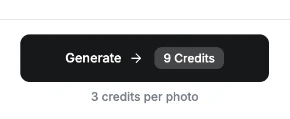
Once your photos and settings are ready, select Generate. The button shows the total before you start: in this example, three photos cost 9 credits (3 credits per photo).
Check the current price
The 9-credit total documents this example. Always review the credit charge shown on the Generate button before you submit.
4. Review, compare, and refine
After generation, select each thumbnail on the right to inspect every angle. Use Before/After to compare a result with its original photo, and Start Over to begin a new set.
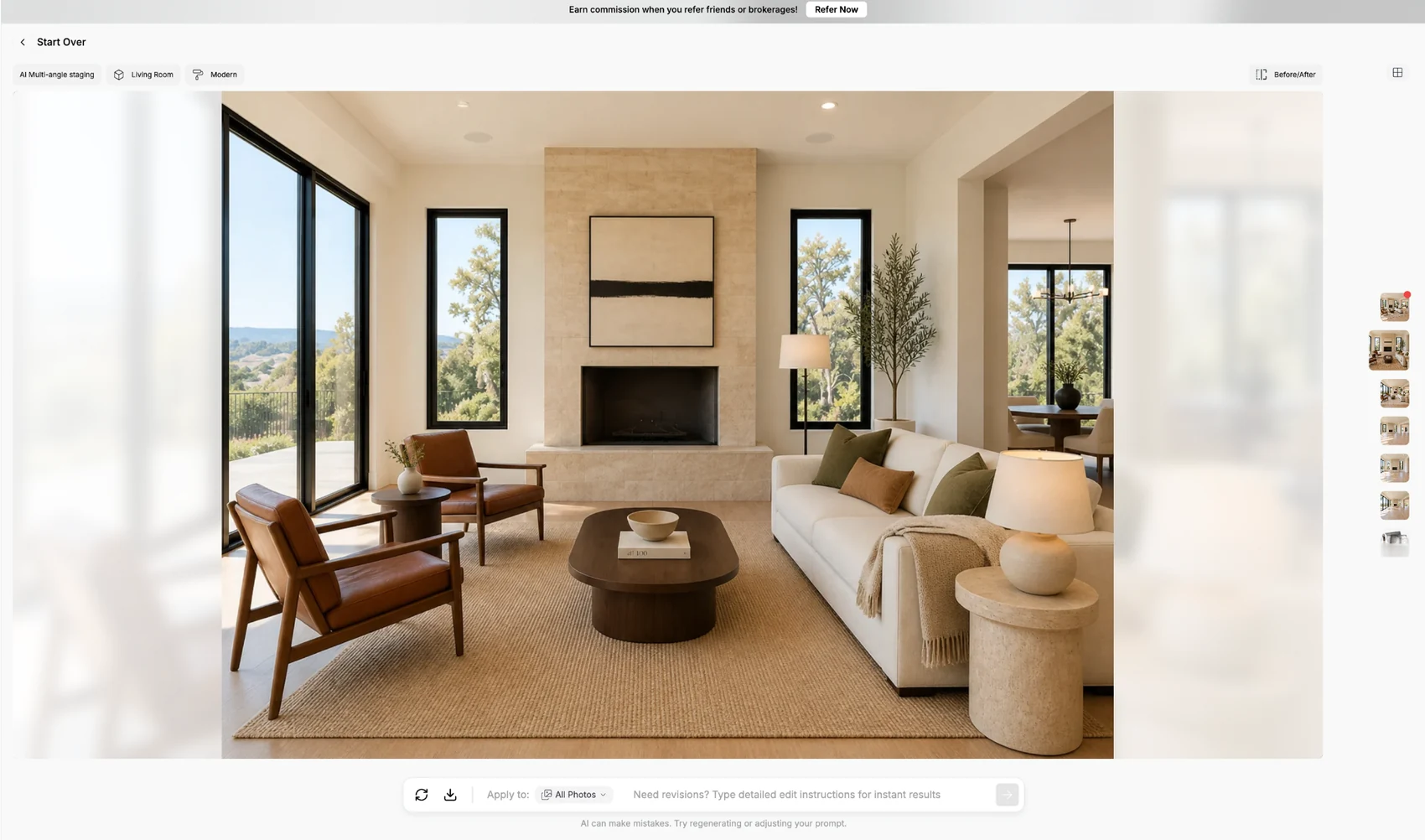
Beneath the image you can regenerate or download, choose which photos to change with Apply to (for example, All Photos), and type edit instructions in the revision field.

Check furniture continuity and architectural details across every angle before sharing.
Before & after — three room views
Compare each original photo with its Collov AI staging result. Drag the slider, or focus it and use the arrow keys.
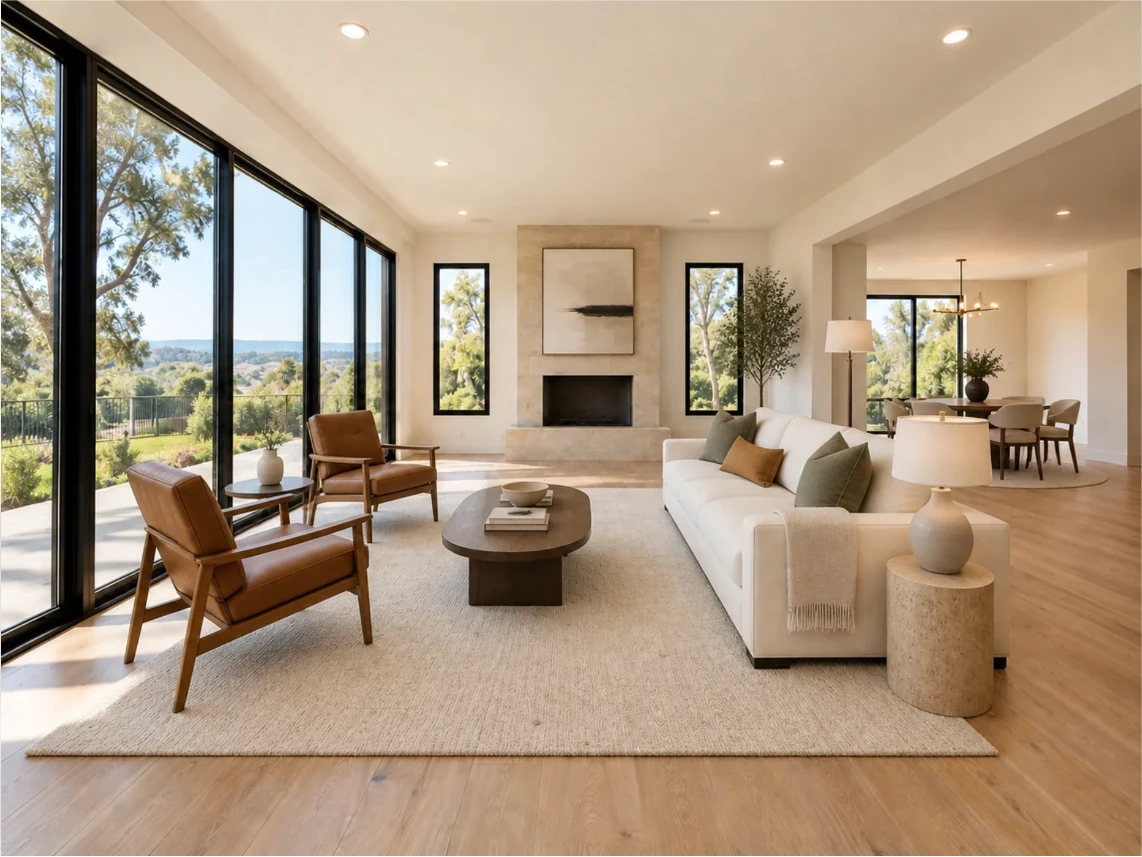
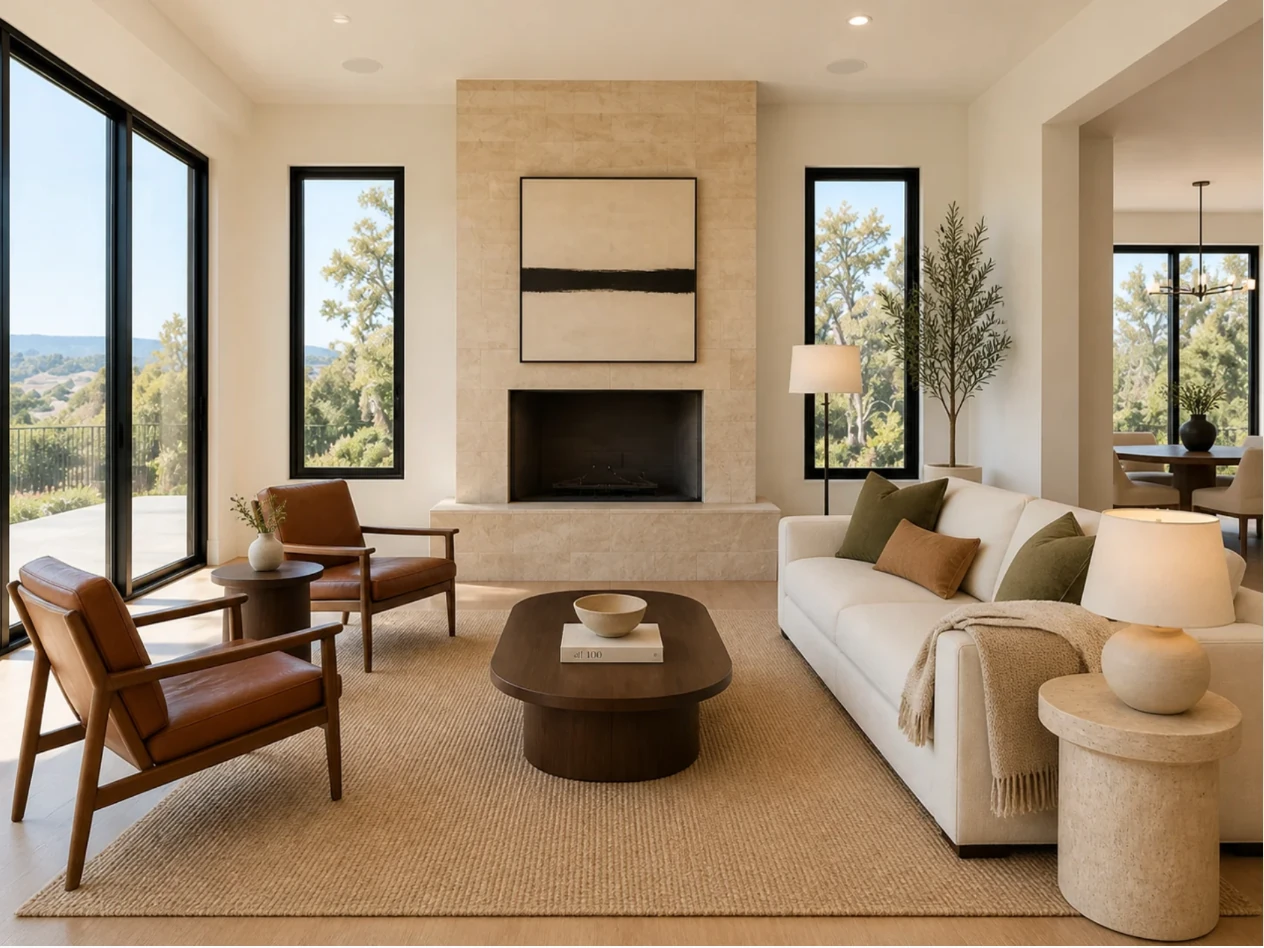
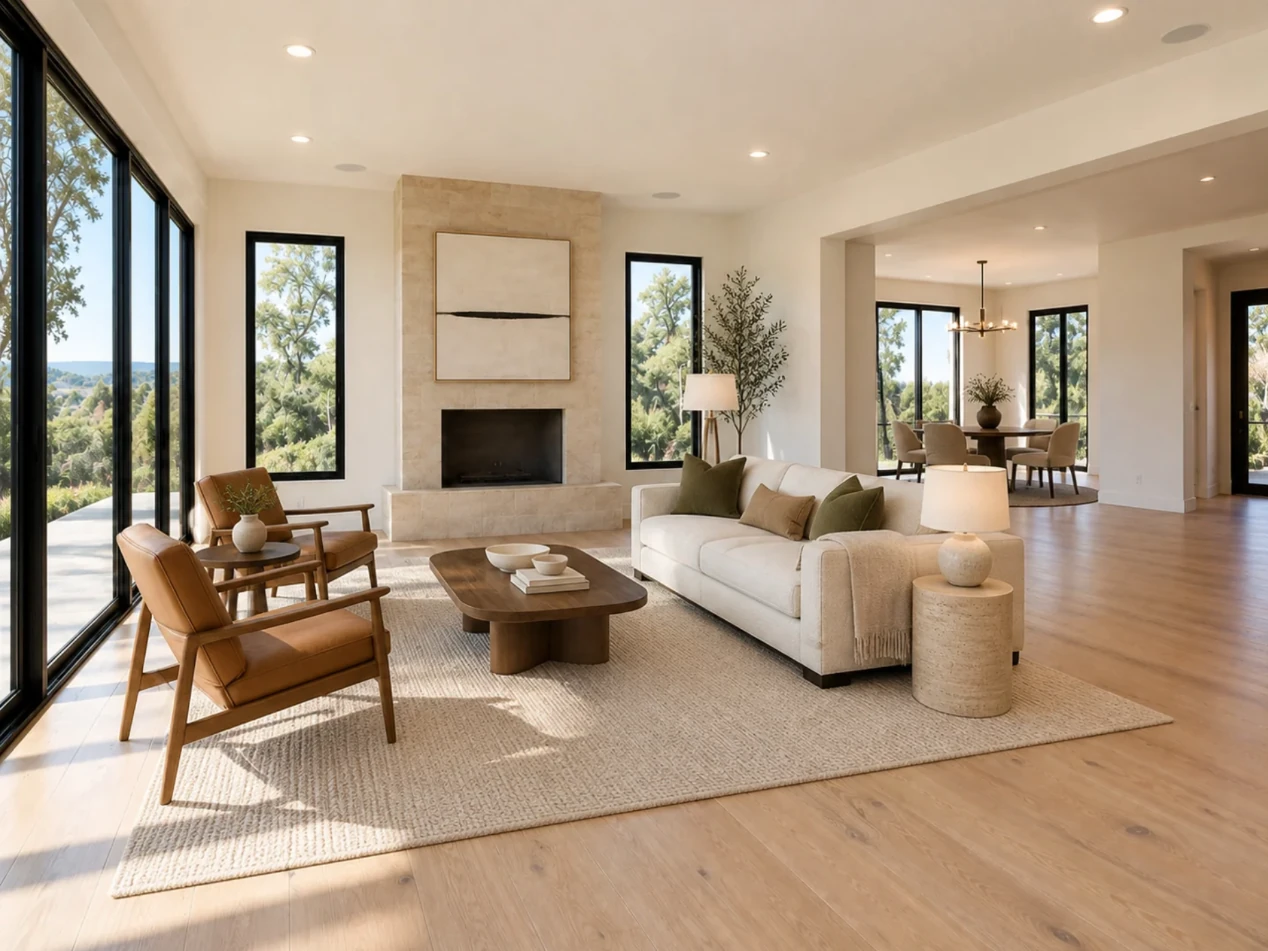
Example source photos were AI-generated. After images were produced with Collov AI and cropped from the results workspace.
Frequently asked questions
Do all photos need to show the same room?
Yes. Upload different views of the same room together so the generated photos can be reviewed as a single design.
Which file formats can I upload?
The upload screen recommends JPG, JPEG, PNG, and WEBP files.
How many credits does AI Multi-Angle Staging cost?
In the example shown, three photos cost 9 credits in total (3 credits per photo). Review the credit charge displayed in your account before generating.
Can I guide the design style?
Yes. Choose a room type and style. You can also upload an optional reference image and add specific requirements.
Can I make changes after generation?
The results workspace includes an edit-instructions field, an Apply to selector, and controls for additional actions. Review changes before using them in a listing.
Is this the same as Human-Assisted Multi-Angle Staging?
No. This tutorial covers the AI-generated workflow. Human-Assisted Multi-Angle Staging uses a separate request and delivery process.